
Contents
1-4. System requirements • Installation • Preparing a Steam account • Recommendations for designing an account
1. System requirements
ОS: Windows 10.0.19041.0 or higher (x64)CPU: 4 perfomance cores
RAM: 300Mb -1.5Gb. free memory for work depending on the load. Using each site in the bot uses 300-400 MB of RAM memory.
Additional: .NET 8, download from here.
2. Installation
Install to C:\XBOT, or to a separate disk partition by creating a corresponding folder, for example Z:\XBOTDO NOT INSTALL THE APPLICATION TO C:\Program Files!!!
Add XBOT folder to exclusion list of antivirus \ Windows Defender!!!
3. Preparing a Steam account
To accept purchases and transfer sold items, it is necessary:- Connect your Steam account to SDA (put your mafile to XBOT \ Steam Desktop Authenticator \ MaFiles)
- Открыть доступ к торговой площадки Steam (SCM), обменам, Steam API-key
Manual for initial connection to SDA \ transfering data from phone SteamGuard app to mafile can be found here.
4. Recommendations for designing an account
Design your account to look like a real user to reduce the risk of getting ban during trading by following these conditions:- Be sure to install DOTA2, CS2 and third paid game for yourself, play games at least 2-3 times a week from the account, mainly in CS2
- Fill the page with information about yourself (name, steam levels, icon, avatar)
- Minimize the total number of exchanges, ideally exchanges are not made every day, and no more than 5-10 per day
- The cheaper the things you trade, the proportionally higher the chance of running into opencase/roulette users, any of whom may turn out to be inadequate and the higher the chance that you will be sold a scammed thing, many users do not worry about the security of their own accounts
- Trade from multiple accounts. The more of them, the proportionally lower the already small (after completing the points above) chance of running into not only a bunch of reports on 1 account, but even 1-2 single ones. And segmentation can also save a large part of your capital if an “accident” does happen and you get CT for any reason.
These recommendations will be relevant for any trader, regardless of the trading method and software used. The issue is considered in more detail in the article
5. First launch and quick setup of the bot
5.1 Choose language
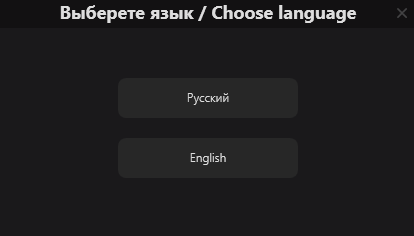
The first step is to select the language. Available in Russian and English.
5.2 User agreement
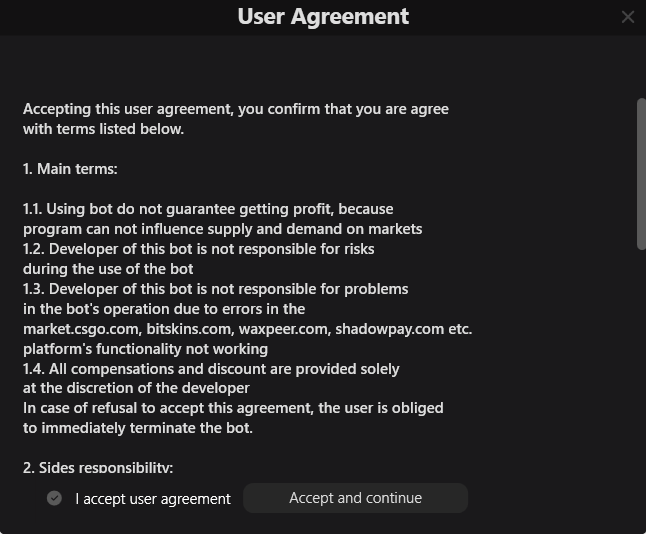
Before you log into the bot and start setting it up, you must read and accept the user agreement.
5.3 Choose games
The next step is to select a game. You can select either one or all games at once. To avoid mistakes, you cannot select any game.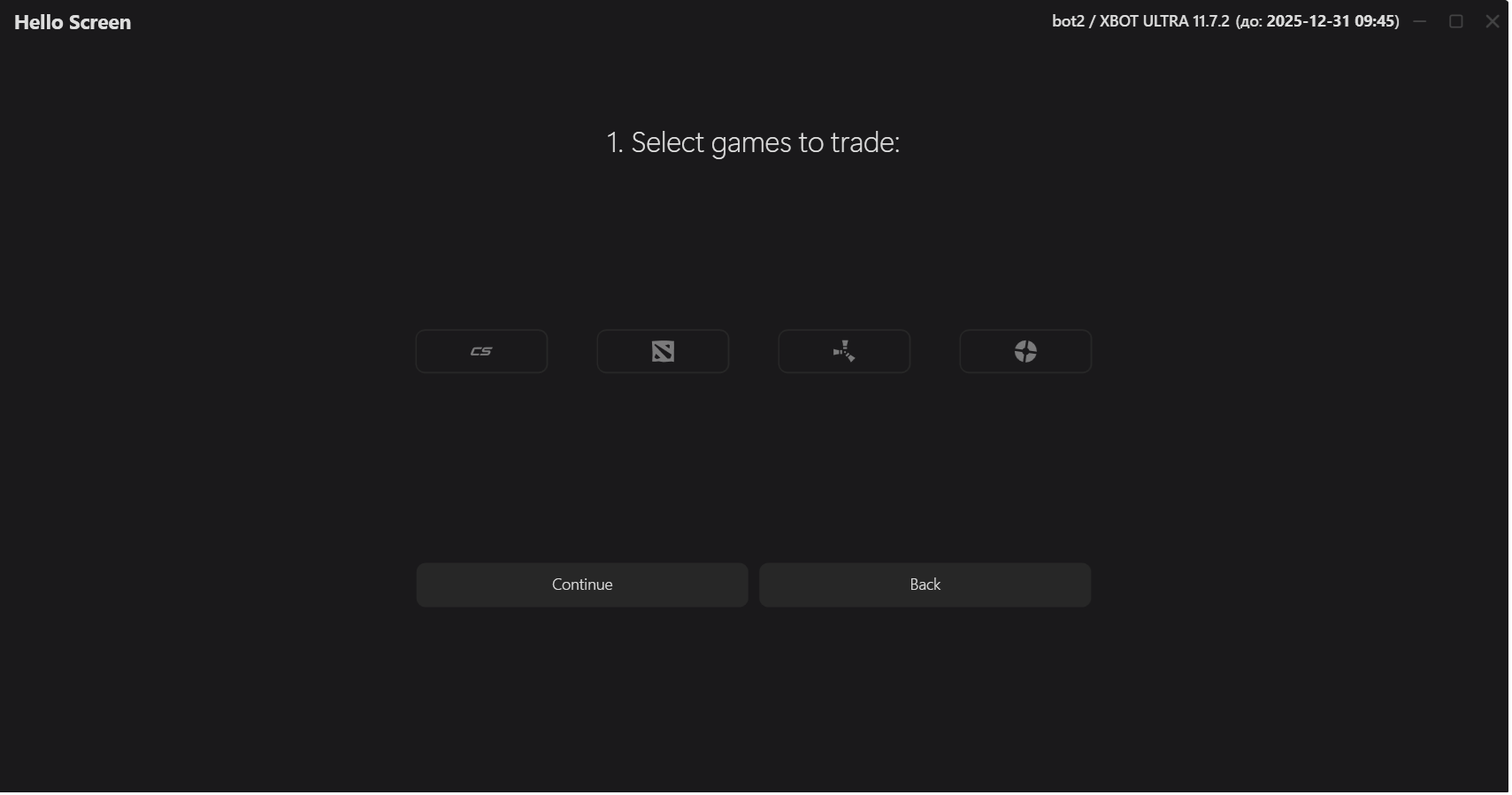
5.4 Choose markets
The second step is choosing the markets where trading will take place. You need to choose at least one.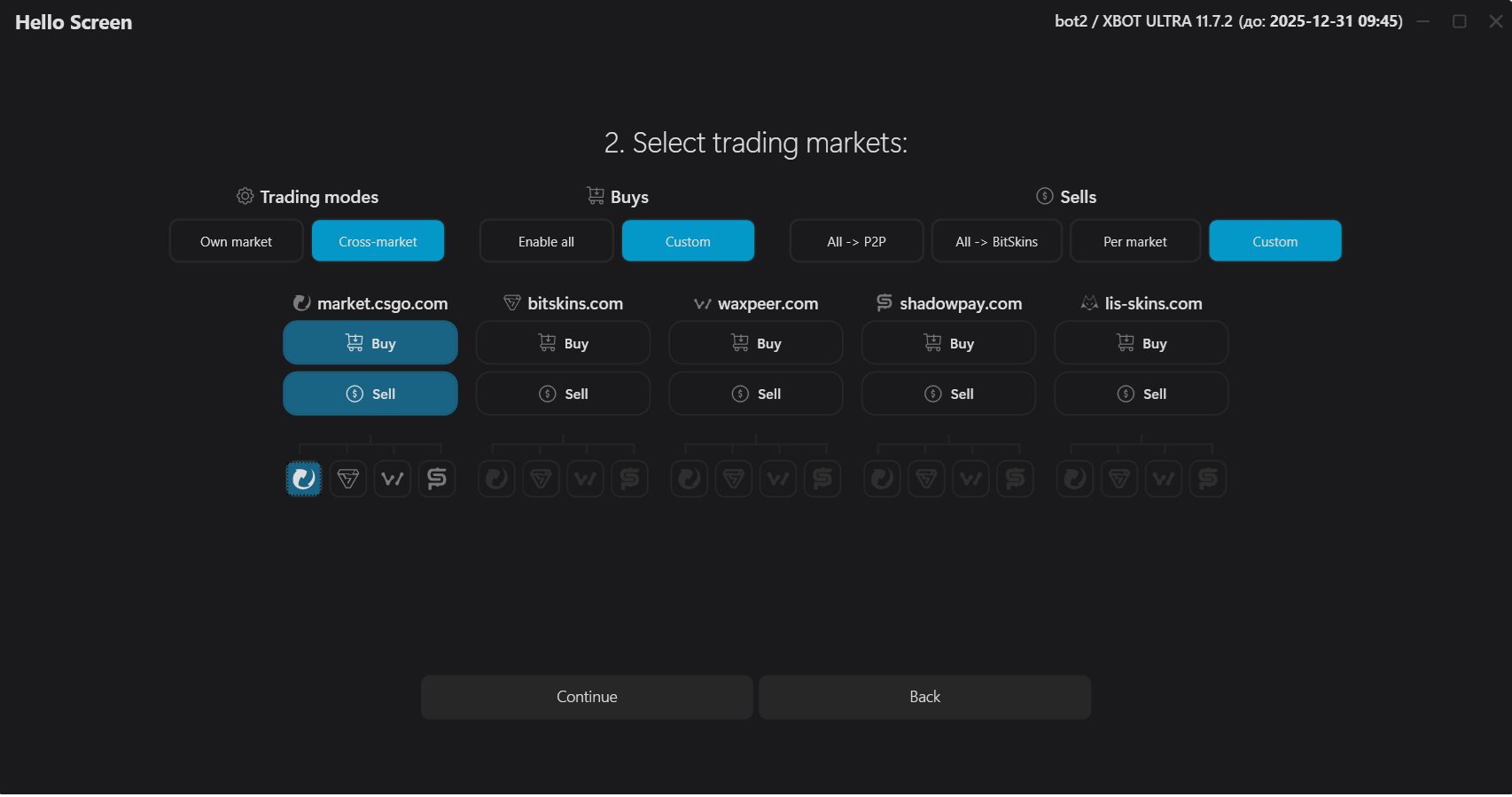
5.5 Entering API keys for markets
Now you need to get the API keys of the markets for the bot to work with them. Click the "Get Key" button to go to the key generation page. If you are using the market.csgo.com platform for the first time, you will be asked to complete some preparatory steps to get the key. After generating the key, insert it into the bot and click "Continue"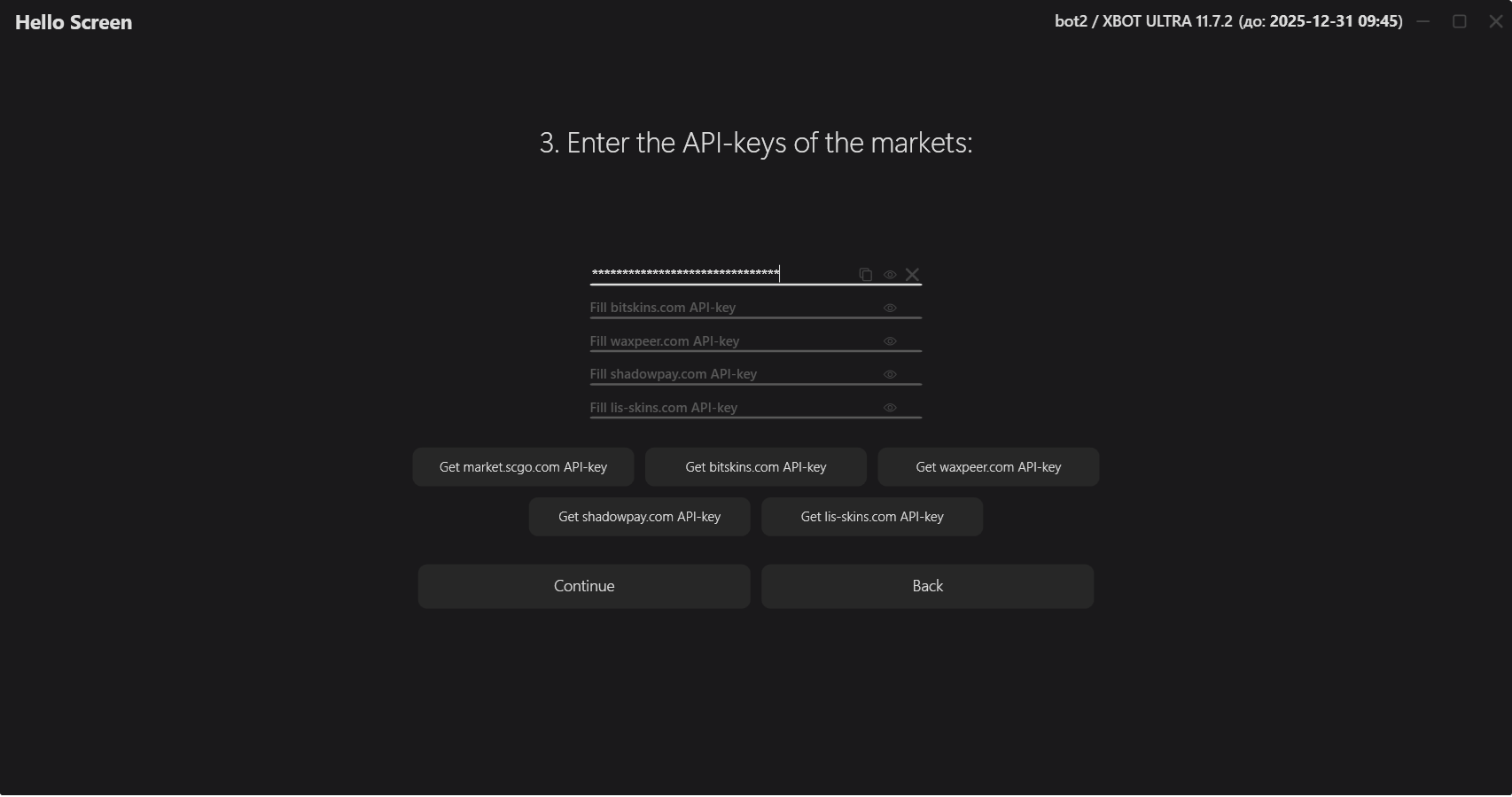
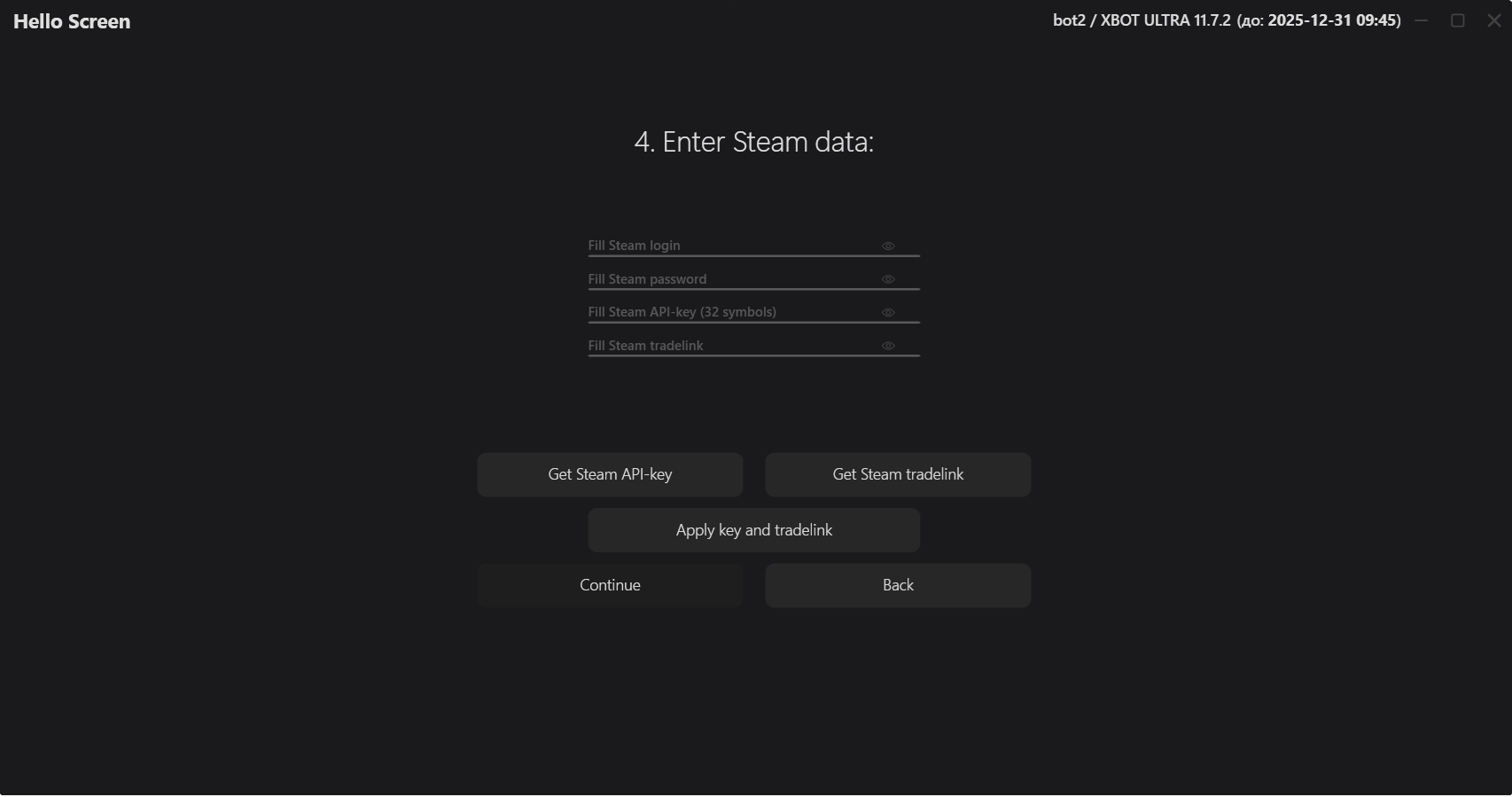
5.6 Entering your Steam account credentials and API key
The next step is to enter your account details, API key and Steam trade-link. The key must be applied immediately after receiving it - it is linked to the market.csgo.com platforms (previously, without this, you could not sell or transfer items, now an access token is used for this, but some platforms still require linking an API key). If the key and trade-link are successfully applied, the "Continue" button will be unlocked, leading to the last step of the setup.Note: The bot will not let you proceed to the last step if you do not apply the key. This may not be possible to do the first time in case of errors in the key, or problems in the operation of the market itself. Also, the bot will not let you apply an empty \ too long \ too short key. Be careful.
Note: The bot does not check the correctness of the account and key data, they are used only for subsequent login to Steam and the operation of receiving/transferring items. We are not responsible for the correctness of the entered data and possible errors in the work associated with this!
5.7 Import MaFile from an account for transferring items
The last step in preparation for work is importing MaFile from your Steam account into the bot for automatic acceptance/transfer of items during purchases and sales. Click "Import MaFile", specify the path to the file of your account, previously linked to Steam Desktop Authenticator. After you have imported MaFile, click "Continue" and your bot is completely ready to work. Congratulations!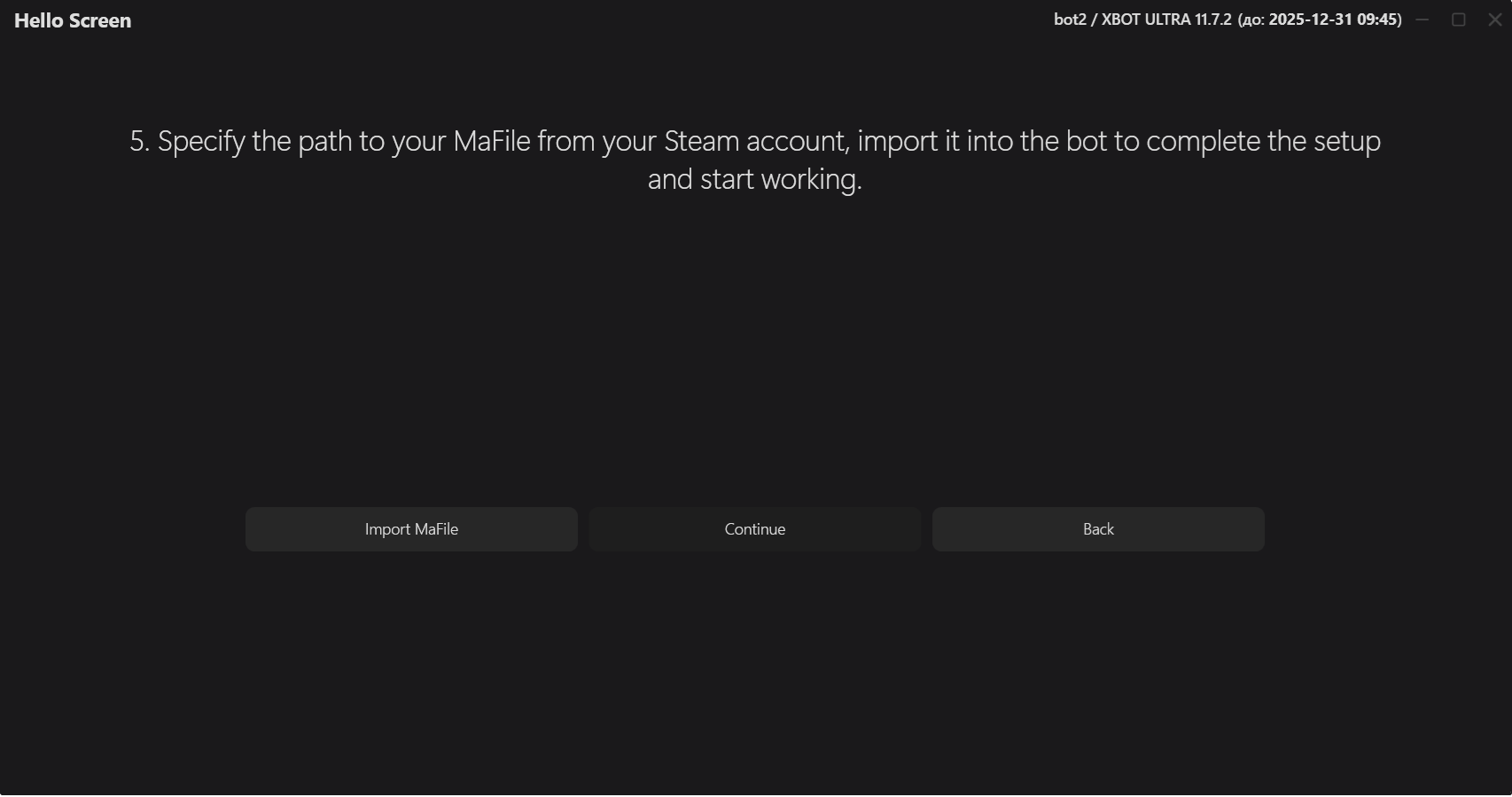
5.8 Auto-tuning "out of the box"
The last step in preparation for work is the offer to enable automatic configuration of analytics (purchases) and sales of the bot by default. For beginners, it is recommended to leave these parameters enabled and complete the setup.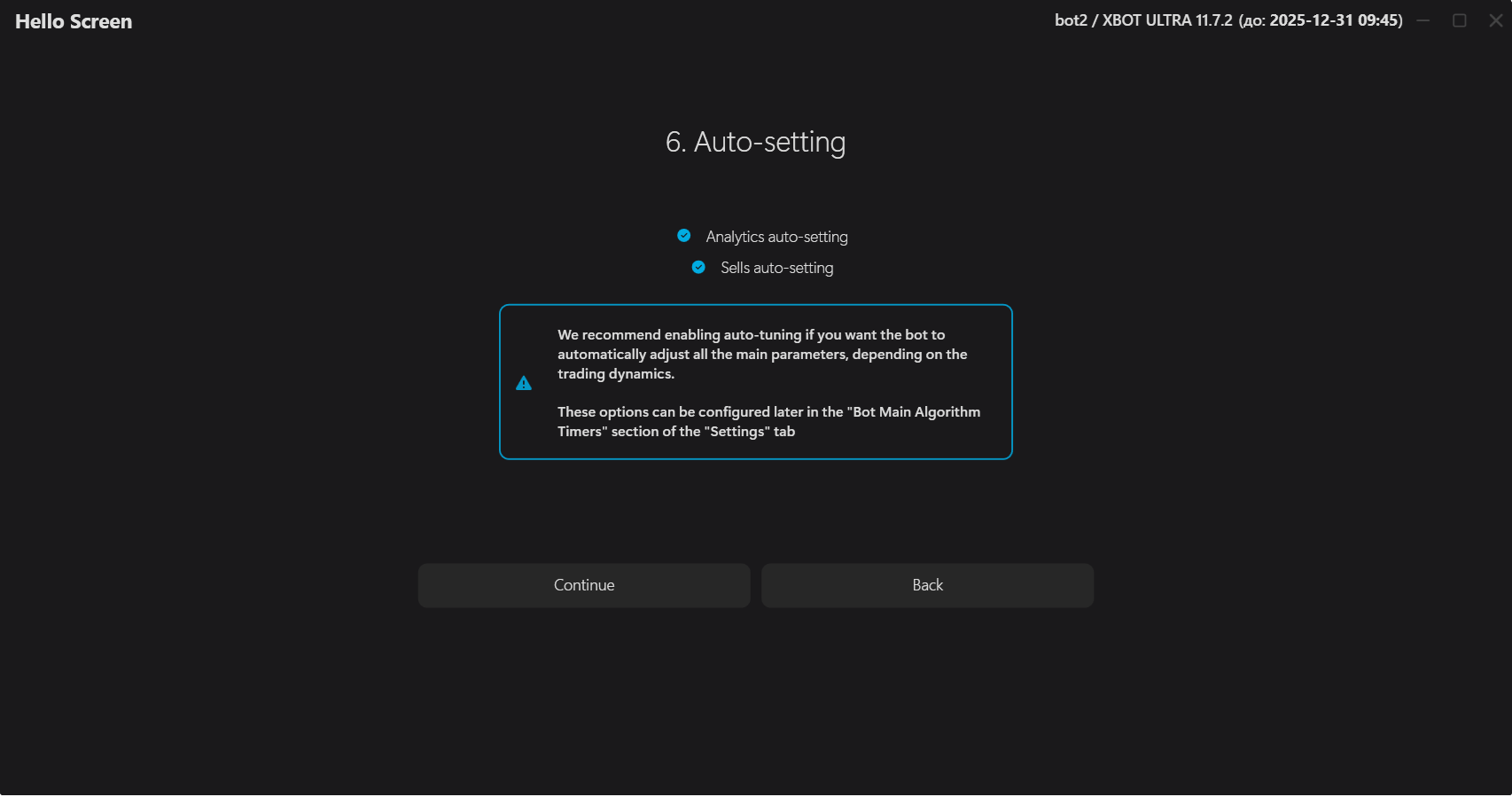
5.9 Telegram notifications setup
To easily monitor your bot's operation and receive prompt notifications about all processes and transactions within the bot, we recommend connecting the Telegram bot. You can skip this step and do it later.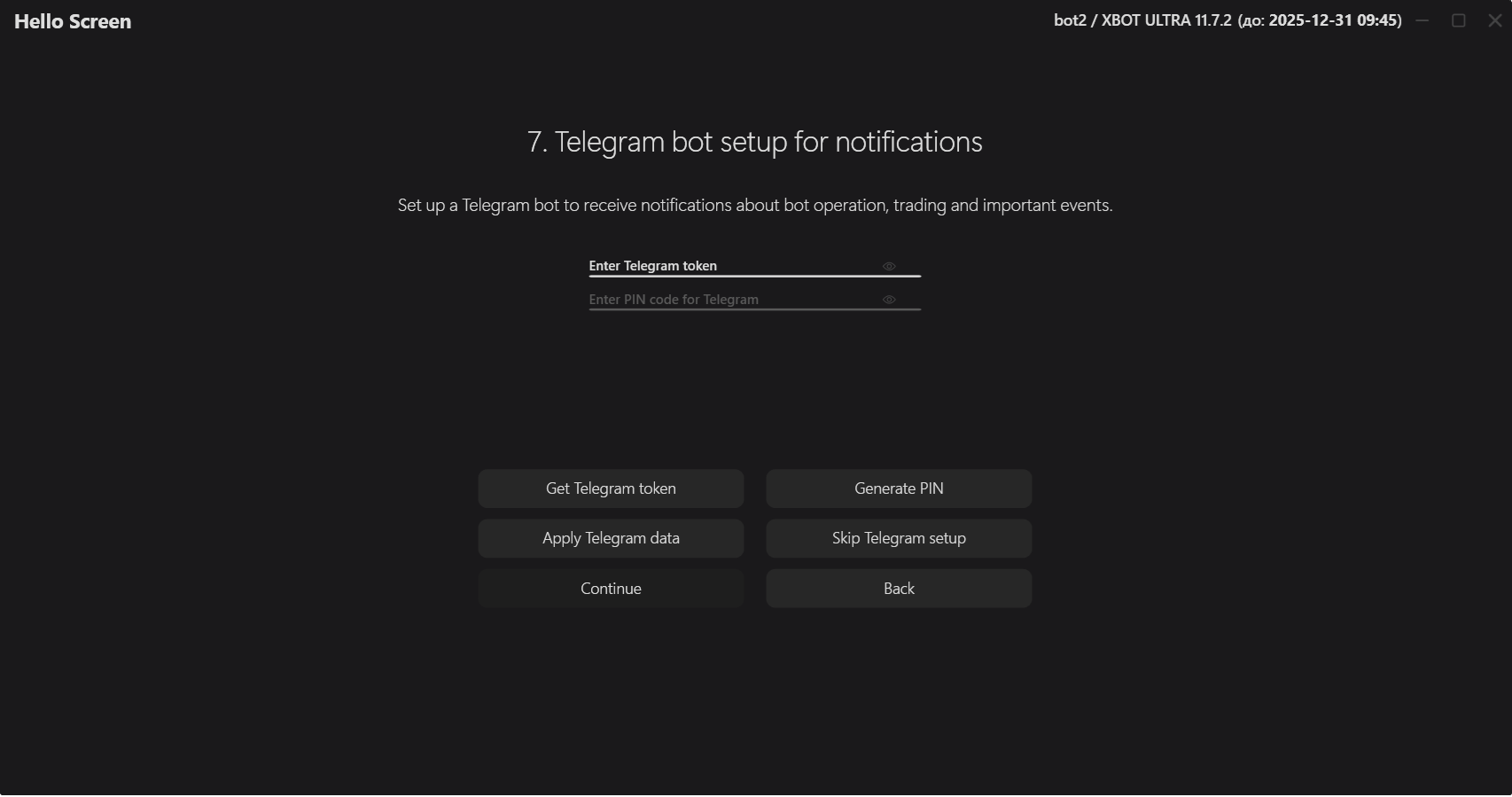
6. «Home» tab
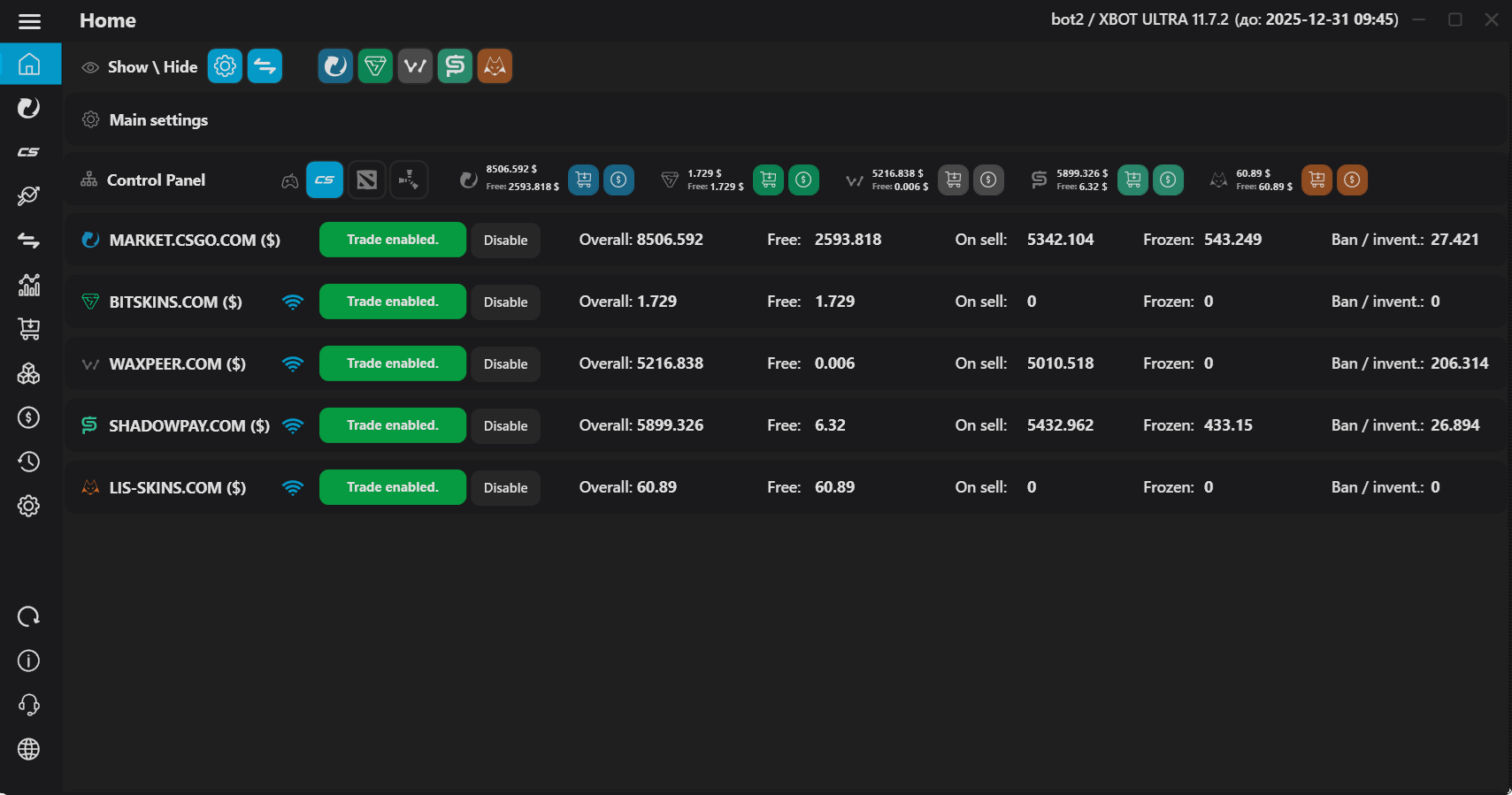
6.1 General view
The tab menu is now on the left. In it, you can select a platform and a game within it, and open the "Charts" tab to visualize the data. The remaining tabs are specific to the selected platform and the game within it. Each game on each platform has its own tabs "Purchase", "Analytics", "Sale", "Statistics" and "Settings". At the bottom of the menu are icons for this guide and requests for technical support, as well as a change of language.The main program management now takes place in the "Main" tab. This tab contains a block of general settings related to the entire program, under it - blocks of sites (currently there are 5 sites: market.csgo.com, bitskins.com, waxpeer.com, shadowpay.com, lis-skins.com). Any block can be expanded by clicking on it anywhere, collapsed - by clicking the collapse icon in the upper right corner of the block, similar to the main program window.
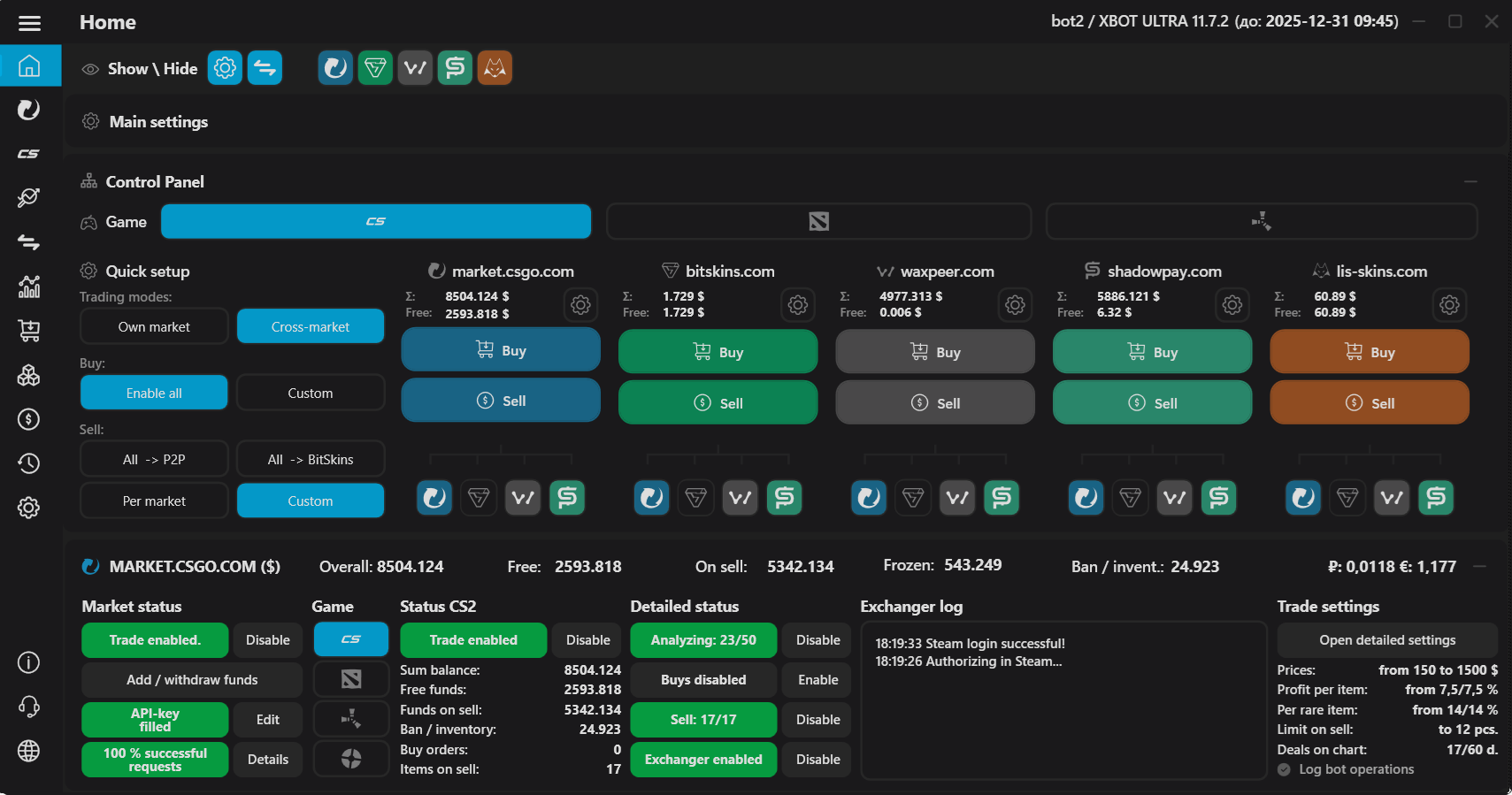
6.2 Control panel
In the control panel, you can quickly and flexibly configure your trading strategies, selecting which marketplaces to buy from and which marketplaces to sell purchases on. You can also view the overall balances of the marketplaces and the amounts of free funds available on them. The 'Buy' buttons for each marketplace comprehensively enable/disable everything related to purchases—including timers for analytics and maximum order amounts, and checking the prices of buy orders. Similarly, the 'Sell' buttons enable/disable timers for setting up sales, minimum threshold amounts, and start/stop the price check for items on sale on the marketplace."Please note! This button does not remove items from sale, allowing the bot to continue remembering all the item data.
You can also set up quick trading presets: trading mode (Within marketplaces, Between marketplaces), purchase presets, and sales goal presets (e.g., 'From all to P2P', or 'From all to BistSkins')."
6.3 Working with the platform
When you open the platform block, for detailed management you need to select the desired game, after which all the statuses related to the game will open, as shown in the screenshot. If trading for the game is disabled, everything will be gray. Click "On" in the main game control block to enable all processes in the bot within the selected game.
The bot is completely ready for work at startup, has a default item database and will launch analytics on it. If you have purchase requests or items for sale, the bot will immediately begin to adjust their prices, and will also try to start receiving \ transferring items. If you entered all the Steam account data correctly, you will see the statuses of successful authorization in Steam in the reception/transmission console.
In case of any errors, the bot will inform you about this by turning the corresponding status yellow, and then in ascending order - the general trading status for the game will also turn yellow, as well as the general trading status for the platform. This indication is designed to simplify monitoring of problems, so that you can see any problems in the work on one tab and immediately proceed to their elimination.
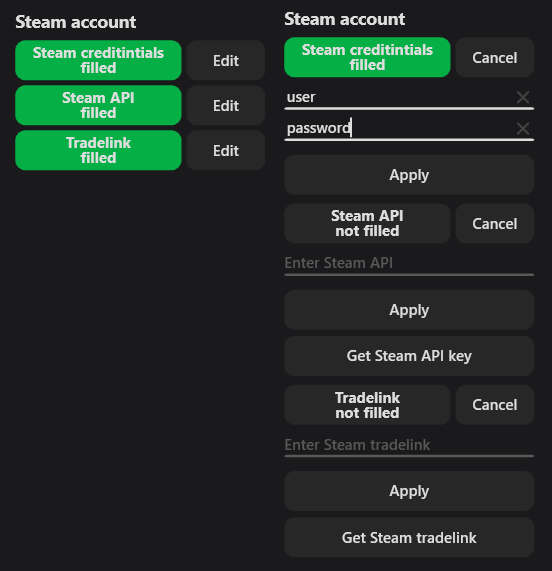
6.3 Account settings
The first 2 fields are your Steam account details.
You can find out the Steam API key here.
You can get\recreate the API key of TM platforms here.
You can find out the Steam trade-link here.
You can find out the Steam API key here.
You can get\recreate the API key of TM platforms here.
You can find out the Steam trade-link here.
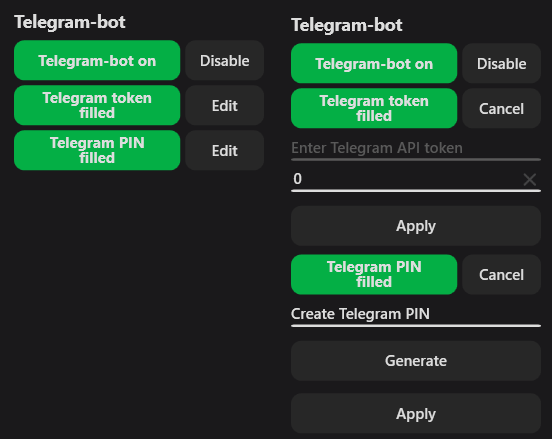
6.4 Telegram bot management and notification settings
The bot provides for remote partial control, and the ability to receive notifications about various events via Telegram.
In order to connect Telegram, you need to create a Telegram bot and use a token from it (analogous to an API key), you need to:
- Find the Telegram account @botfather, write to him.
- Following his prompts, create a Telegram bot.
- Take the token received in the message from @botfather, transfer it to the token field in XBOT.
- Write or generate a PIN code for access. It will be needed to authorize you in the Telegram bot. After launching XBOT, when you try to write to your Telegram bot, it will ask you to enter a captcha for authorization. After the first authorization, XBOT will remember your chat ID and will authorize using it.
- You can configure all notifications in the advanced settings of a specific game in each platform.
The controls in Telegram itself are very simple - you will get the hang of it without additional information.
Note: If the Telegram bot does not respond, your provider may be blocking access to Telegram servers, a proxy or VPN will help you.
In order to connect Telegram, you need to create a Telegram bot and use a token from it (analogous to an API key), you need to:
- Find the Telegram account @botfather, write to him.
- Following his prompts, create a Telegram bot.
- Take the token received in the message from @botfather, transfer it to the token field in XBOT.
- Write or generate a PIN code for access. It will be needed to authorize you in the Telegram bot. After launching XBOT, when you try to write to your Telegram bot, it will ask you to enter a captcha for authorization. After the first authorization, XBOT will remember your chat ID and will authorize using it.
- You can configure all notifications in the advanced settings of a specific game in each platform.
The controls in Telegram itself are very simple - you will get the hang of it without additional information.
Note: If the Telegram bot does not respond, your provider may be blocking access to Telegram servers, a proxy or VPN will help you.
6.5 Service settings
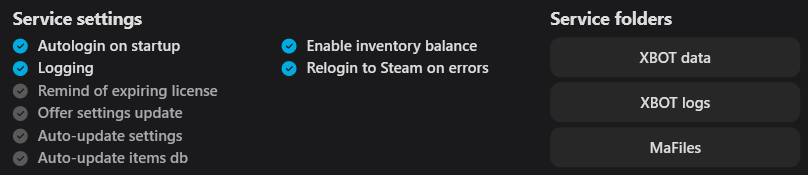
«Autologin on startup» - automatic login to the bot on startup.
«Logging» - Enables \ disables logging of basic actions during operation
«Remind of expiring license» - notifications in Telegram if the subscription expires in less than in 2 days.
«Offer settings update» - a pop-up window when a new version of the settings is detected on the server.
«Auto-update settings» - automatic download of bot settings updates from the server.
«Auto-update items db - automatic download of item database updates for the bot from the server.
Note: is necessary to help identify program errors, it is better to enable it at the request of technical support Some logs will be recorded during XBOT crashes, even if the parameter is disabled!
«Enable inventory balance" - When enabled, the total cost of items in the tradeban will be displayed,
(purchase cost + average value between min. and max. threshold for listing for sale by default - commission). Information is updated several times per hour.
«Logging» - Enables \ disables logging of basic actions during operation
«Remind of expiring license» - notifications in Telegram if the subscription expires in less than in 2 days.
«Offer settings update» - a pop-up window when a new version of the settings is detected on the server.
«Auto-update settings» - automatic download of bot settings updates from the server.
«Auto-update items db - automatic download of item database updates for the bot from the server.
Note: is necessary to help identify program errors, it is better to enable it at the request of technical support Some logs will be recorded during XBOT crashes, even if the parameter is disabled!
«Enable inventory balance" - When enabled, the total cost of items in the tradeban will be displayed,
(purchase cost + average value between min. and max. threshold for listing for sale by default - commission). Information is updated several times per hour.
7. «Settings» tab and quick bot setup
7.1 Quick setup
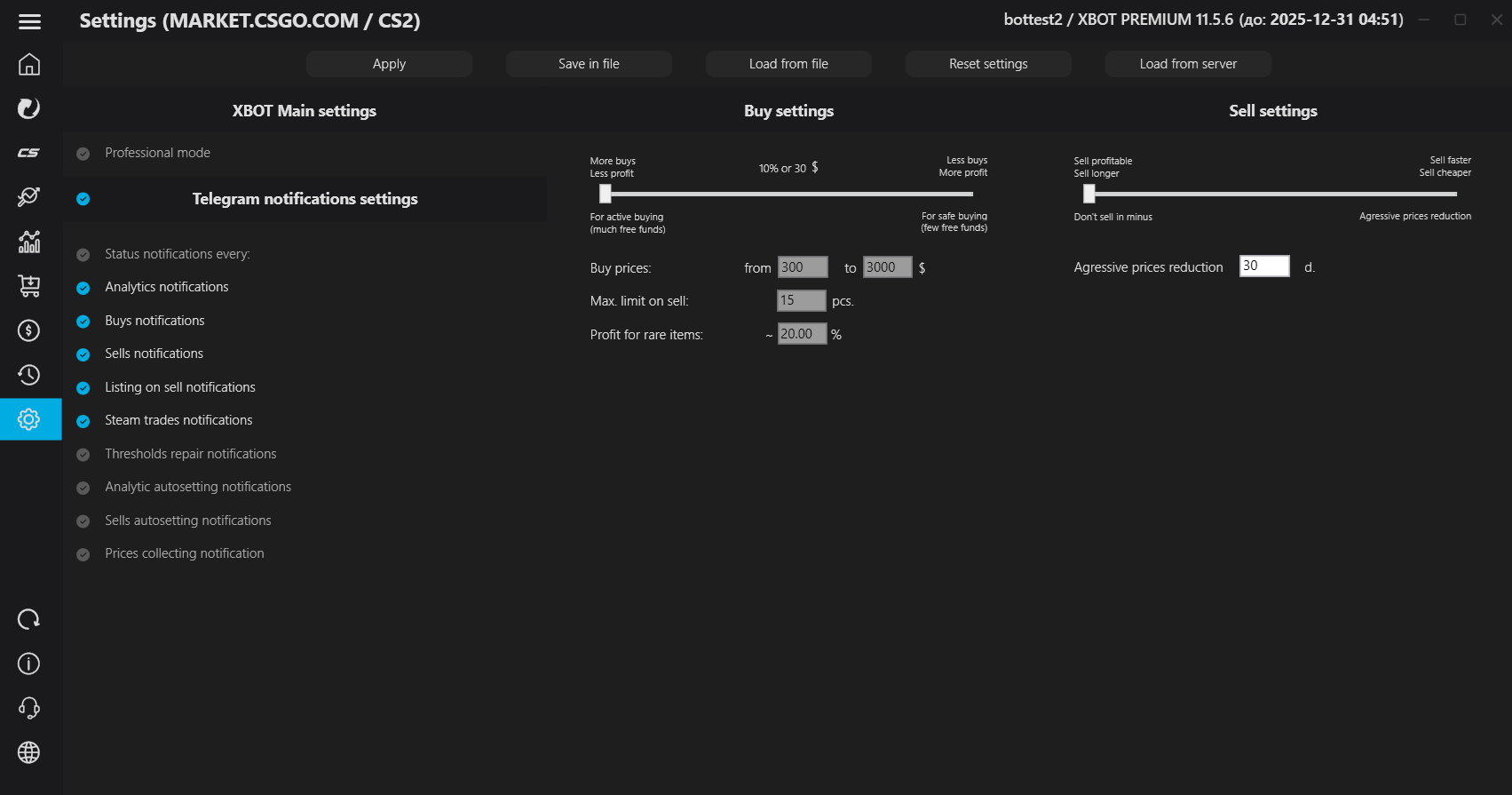
Note: All bot settings will be optimally set according to your product, but if necessary, you can edit the necessary parameters yourself.
Advanced settings
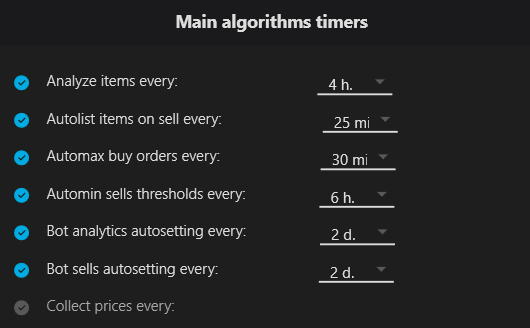
7.2 Main algorithm timers
«Analyze items every …» – Frequency of launching a search for profitable purchase requests in the site’s item database \ user database.
«Autolist items on sell every …» – Frequency with which XBOT checks the inventory for unlisted items and lists them for sale.
«Automax buy orders every …» – Frequency with which XBOT checks the relevance of the selected thresholds for orders (purchase requests) outbid by competitors, and increases them if, when increased, they retain the income potential in %. set by the user.
«Automin sells thresholds every …» – Frequency with which XBOT lowers the price thresholds for the selected items for sale by 1%.
Bot analytics/sells autosetting every …" – Frequency with which XBOT evaluates your trade and automatically reconfigures its parameters.
"Collect prices every … " – Frequency with which XBOT saves price snapshots for all items in the selected game on the selected platform.
«Autolist items on sell every …» – Frequency with which XBOT checks the inventory for unlisted items and lists them for sale.
«Automax buy orders every …» – Frequency with which XBOT checks the relevance of the selected thresholds for orders (purchase requests) outbid by competitors, and increases them if, when increased, they retain the income potential in %. set by the user.
«Automin sells thresholds every …» – Frequency with which XBOT lowers the price thresholds for the selected items for sale by 1%.
Bot analytics/sells autosetting every …" – Frequency with which XBOT evaluates your trade and automatically reconfigures its parameters.
"Collect prices every … " – Frequency with which XBOT saves price snapshots for all items in the selected game on the selected platform.
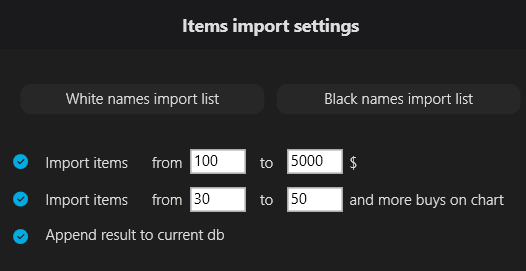
7.3 Database import settings from the site
"White names import list" - The bot will ignore other import conditions if the name of the item in the database contains a name from this list.
Other items will go through other import conditions.
"Black names import list" - The bot will not import the item if the name of the item in the database contains a name from this list.
Other items will go through other import conditions.
"Import items from and to ... $\₽" - Filter by price.
Items outside the range will not be imported (the price is taken from the cheapest offer on sale at the time of importing the database).
"Import items from and to ... purchases" - Filter by total number of purchases in the history of the item.
Items outside the range will not be imported.
"Append result to current db" - if the parameter is disabled, after import the old database will be COMPLETELY REPLACED by the new one. If enabled - during import, items will be checked for presence in the current database and only unique ones will be added.
Other items will go through other import conditions.
"Black names import list" - The bot will not import the item if the name of the item in the database contains a name from this list.
Other items will go through other import conditions.
"Import items from and to ... $\₽" - Filter by price.
Items outside the range will not be imported (the price is taken from the cheapest offer on sale at the time of importing the database).
"Import items from and to ... purchases" - Filter by total number of purchases in the history of the item.
Items outside the range will not be imported.
"Append result to current db" - if the parameter is disabled, after import the old database will be COMPLETELY REPLACED by the new one. If enabled - during import, items will be checked for presence in the current database and only unique ones will be added.
7.4 Bot analytics auto-tuning parameters
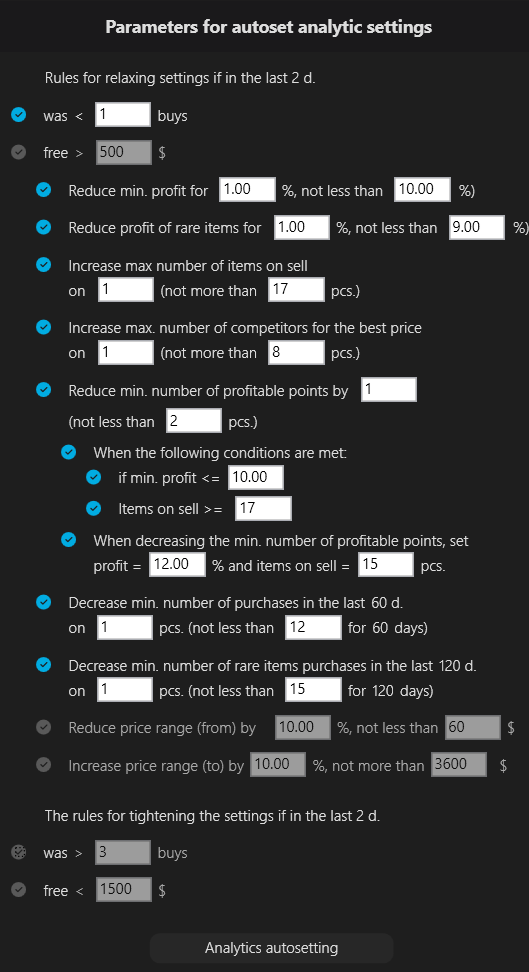
Rules for relaxing the settings if in the last … days:
Was < … purchases» - Relaxation of the analytics parameters will be applied if in the last ... days there were less than the specified number of purchases.
«Free > … $\₽ - Relaxation of the analytics parameters will be applied if in the last ... days there were less than the specified number of purchases.
«Reduce min. profit for…» - The value by what % the minimum income will be reduced if the conditions are met.
«Reduce ext. profit for…» – The value by what % the increased income will be reduced if the conditions are met.
«Increase max. number of items on sell…» – The value by which the number of offers for sale will increase if the conditions are met
«Increase max. number of competitors for the best price on…» - The value by which the number of competitors for the best price on sale will increase if the conditions are met
«Reduce min. number of profitable points on…» – The value by which the minimum required number of profitable points on the chart will decrease if the conditions are met
«Decrease the min. number of purchases in the last … days by…» - The value by which the minimum required number of transactions on the chart will decrease if the conditions are met
Note: The rules for tightening the settings work in a completely similar way, but all parameters change in the opposite direction
Was < … purchases» - Relaxation of the analytics parameters will be applied if in the last ... days there were less than the specified number of purchases.
«Free > … $\₽ - Relaxation of the analytics parameters will be applied if in the last ... days there were less than the specified number of purchases.
«Reduce min. profit for…» - The value by what % the minimum income will be reduced if the conditions are met.
«Reduce ext. profit for…» – The value by what % the increased income will be reduced if the conditions are met.
«Increase max. number of items on sell…» – The value by which the number of offers for sale will increase if the conditions are met
«Increase max. number of competitors for the best price on…» - The value by which the number of competitors for the best price on sale will increase if the conditions are met
«Reduce min. number of profitable points on…» – The value by which the minimum required number of profitable points on the chart will decrease if the conditions are met
«Decrease the min. number of purchases in the last … days by…» - The value by which the minimum required number of transactions on the chart will decrease if the conditions are met
Note: The rules for tightening the settings work in a completely similar way, but all parameters change in the opposite direction
7.5 Automatic sales settings for the bot
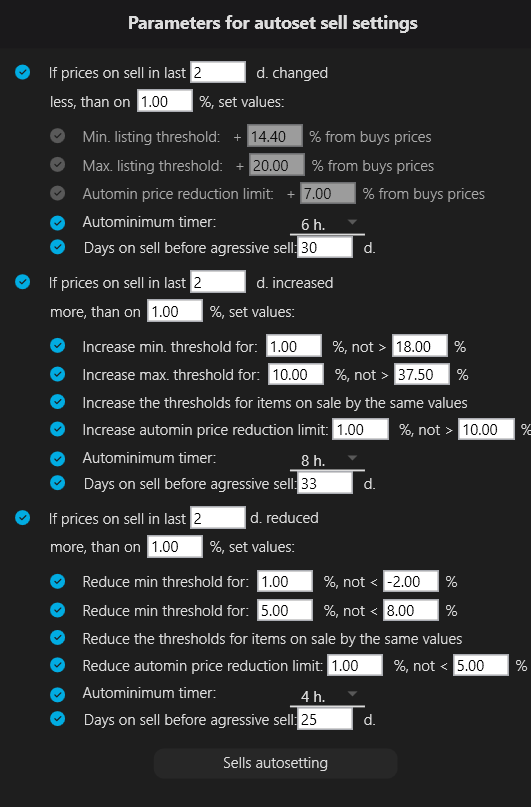
The setting is based on one of three item categories:
- Item prices over the last ... days have increased by more than ... \ fallen by more than ... \ changed by less than ... %
«(Increase by \ decrease by) Min. listing threshold:» - Sets the % for the minimum price threshold in the listing settings.
«(Increase by \ decrease by) Max. listing threshold:» - Sets the % for the maximum price threshold in the listing settings.
«Automin price reduction limit:» - Sets the limit for reducing the min. threshold, from the purchase price of the item, in the settings for automatic threshold reduction "Autominimum".
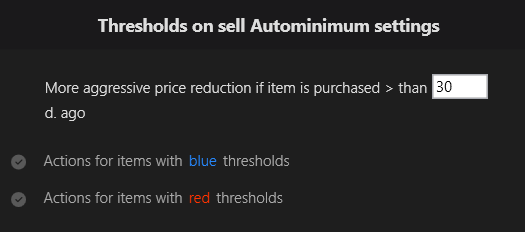
«Autominimum timer:» – Sets the interval for autorunning "Autominimum" in the "Sales" tab
«Days on sell for aggressive reduction:» – After the specified number of days from the moment of purchase of the item, the bot will not be able to find its purchase price in the history and it will be considered that this item was bought long enough ago to reduce its prices with "Autominimum" without reduction thresholds.
«(Increase by \ decrease by) Min. listing threshold:» - Sets the % for the minimum price threshold in the listing settings.
«(Increase by \ decrease by) Max. listing threshold:» - Sets the % for the maximum price threshold in the listing settings.
«Automin price reduction limit:» - Sets the limit for reducing the min. threshold, from the purchase price of the item, in the settings for automatic threshold reduction "Autominimum".
«Autominimum timer:» – Sets the interval for autorunning "Autominimum" in the "Sales" tab
«Days on sell for aggressive reduction:» – After the specified number of days from the moment of purchase of the item, the bot will not be able to find its purchase price in the history and it will be considered that this item was bought long enough ago to reduce its prices with "Autominimum" without reduction thresholds.
7.6 Service settings
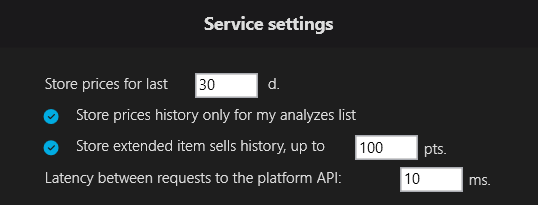
Store prices for the last ... d.» - Relaxation of analytics parameters will be applied if there were less than the specified number of purchases in the last ... days.
Store prices history only for my analyzes list» - Relaxation of analytics parameters will be applied if there were less than the specified number of purchases in the last ... days.
«Collect extended item sells history, up to ...» - The value by what % the minimum income will be reduced if the conditions are met.
Store prices history only for my analyzes list» - Relaxation of analytics parameters will be applied if there were less than the specified number of purchases in the last ... days.
«Collect extended item sells history, up to ...» - The value by what % the minimum income will be reduced if the conditions are met.
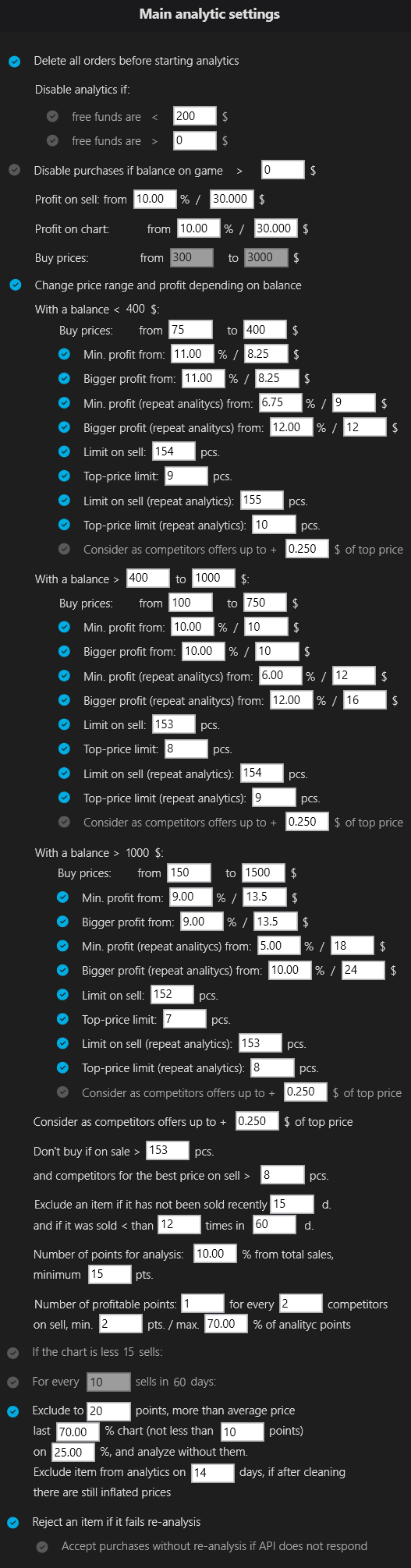
7.7 Main analytics settings
«Delete all orders before starting analytics» - on\off deleting ALL orders when a new analytics cycle starts.
«Disable analytics if …» - do not perform analytics if the free balance is less or more than the specified value.
«Disable purchases if balance on game …» - do not perform analytics if the sum of the prices of the items posted + the sum of the prices of the items banned in the game is more than the specified value.
«Profit on sell from …» is the minimum income from an item that XBOT is looking for in the process of comparing order prices taking into account the discount and offers on sale minus the commission, regulated by two parameters - % and RUBLES.
«Profit on chart from …» is the minimum income from an item that XBOT is looking for in the process of comparing order prices minus the discount and all points for analysis minus the commission from each point, regulated by two parameters - % and RUBLES.
This helps to choose the right dependence on the price, and strengthen it in the ruble value from below for cheaper items.
«Buy prices from … to … $\₽ - the price range is calculated based on the average price, in order to avoid unreasonably high prices getting into the analytics.
"Change price range and profit depending on balance" - when this option is enabled, the bot allows you to change a whole set of parameters depending on the free balance at the start of analytics. The parameters available for configuration depending on the free balance are listed in the screenshot.
«Consider competitors ...» - offers within a specified number of rubles, from the CHEAPEST PRICE, will be considered competitors by the bot. The rule for calculating the number of PROFITABLE points from all points of the previous settings item depends on their number.
"Don't buy if on sale > ... pcs." - a limit on the number of competitors on sale.
"... and competitors for the best price on sell > ... pcs." - max. Number of offers on sale, competing for the best (cheapest) price, in the range specified by one of the previous parameters.
"Exclude an item if it has not been sold recently ... days, and if it was sold < than ... times in ... days" - the popularity matching condition, allows you to select items with the required minimum number of purchases per day during any required time range.
"Number of points for analysis" - A rule that regulates the number of points that will be analyzed for profitability in relation to the order. % is taken from the total number of points on the chart, the rightmost (last).
«Number of profitable points» - a parameter that determines the rule for calculating the number of PROFITABLE points from all points for analysis. Regulates the dependence of adding points to the "piggy bank" of profitable ones, depending on the number of direct competitors on sale. In addition to direct dependence, you can set the minimum number of profitable points, and the maximum % of the number of all points for analysis, when such a number of points is found, the item is automatically recognized as profitable.
"If the chart is less ... sells:" - If the number of points on the chart is less than the minimum specified in the parameter above, the bot will look for the minimum income specified in this parameter (it is recommended to set very high values, 30-40%). Optionally, accounting for competition on sales is enabled.
«Exclude up to ... points, more expensive than the average price ...% of the graph ...» - A parameter that protects against buying things at unreasonably high prices. The recommended parameters are already set in the bot.
«Reject the item if it has not passed the re-analysis» - When making a purchase, the item is analyzed again, and if the conditions specified in the main analytics settings are not met, it will not be accepted into the inventory, after 5 minutes such a transaction will be canceled.
«Accept purchases, without re-analysis ...» - in case of errors in receiving information from the platforms for re-analysis, the item will be accepted \ rejected, depending on this option.
Note: All calculations are made taking into account the commission on the platform!
«Disable analytics if …» - do not perform analytics if the free balance is less or more than the specified value.
«Disable purchases if balance on game …» - do not perform analytics if the sum of the prices of the items posted + the sum of the prices of the items banned in the game is more than the specified value.
«Profit on sell from …» is the minimum income from an item that XBOT is looking for in the process of comparing order prices taking into account the discount and offers on sale minus the commission, regulated by two parameters - % and RUBLES.
«Profit on chart from …» is the minimum income from an item that XBOT is looking for in the process of comparing order prices minus the discount and all points for analysis minus the commission from each point, regulated by two parameters - % and RUBLES.
This helps to choose the right dependence on the price, and strengthen it in the ruble value from below for cheaper items.
«Buy prices from … to … $\₽ - the price range is calculated based on the average price, in order to avoid unreasonably high prices getting into the analytics.
"Change price range and profit depending on balance" - when this option is enabled, the bot allows you to change a whole set of parameters depending on the free balance at the start of analytics. The parameters available for configuration depending on the free balance are listed in the screenshot.
«Consider competitors ...» - offers within a specified number of rubles, from the CHEAPEST PRICE, will be considered competitors by the bot. The rule for calculating the number of PROFITABLE points from all points of the previous settings item depends on their number.
"Don't buy if on sale > ... pcs." - a limit on the number of competitors on sale.
"... and competitors for the best price on sell > ... pcs." - max. Number of offers on sale, competing for the best (cheapest) price, in the range specified by one of the previous parameters.
"Exclude an item if it has not been sold recently ... days, and if it was sold < than ... times in ... days" - the popularity matching condition, allows you to select items with the required minimum number of purchases per day during any required time range.
"Number of points for analysis" - A rule that regulates the number of points that will be analyzed for profitability in relation to the order. % is taken from the total number of points on the chart, the rightmost (last).
«Number of profitable points» - a parameter that determines the rule for calculating the number of PROFITABLE points from all points for analysis. Regulates the dependence of adding points to the "piggy bank" of profitable ones, depending on the number of direct competitors on sale. In addition to direct dependence, you can set the minimum number of profitable points, and the maximum % of the number of all points for analysis, when such a number of points is found, the item is automatically recognized as profitable.
"If the chart is less ... sells:" - If the number of points on the chart is less than the minimum specified in the parameter above, the bot will look for the minimum income specified in this parameter (it is recommended to set very high values, 30-40%). Optionally, accounting for competition on sales is enabled.
«Exclude up to ... points, more expensive than the average price ...% of the graph ...» - A parameter that protects against buying things at unreasonably high prices. The recommended parameters are already set in the bot.
«Reject the item if it has not passed the re-analysis» - When making a purchase, the item is analyzed again, and if the conditions specified in the main analytics settings are not met, it will not be accepted into the inventory, after 5 minutes such a transaction will be canceled.
«Accept purchases, without re-analysis ...» - in case of errors in receiving information from the platforms for re-analysis, the item will be accepted \ rejected, depending on this option.
Note: All calculations are made taking into account the commission on the platform!
7.8 Extended analytic settings
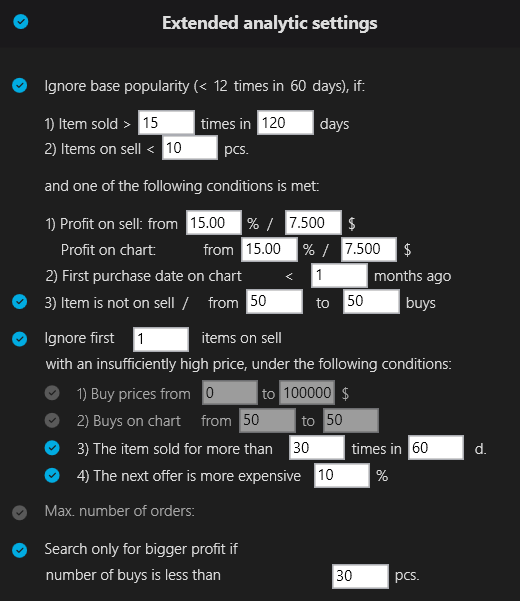
«Ignore base popularity if ...» - conditions under which the popularity filter «Exclude item if it was sold for less than…» from the main analytics settings will be ignored and a profitability analysis will be performed.
Note: The entire block of popularity ignoring conditions is disabled. The 3rd condition for ignoring popularity is optional.
«Ignore the first … items on sell with an insufficiently high price…» - Conditions under which up to the specified number of the cheapest offers on sale with an insufficiently favorable price will be ignored.
«Max. number of orders» - Filter by the maximum total number of orders for this account. When the specified number of orders is reached, analytics will be forcibly stopped.
«Search only for bigger profit if …» - Condition under which ONLY increased income will be searched for by item during analytics!
Note: The entire block of popularity ignoring conditions is disabled. The 3rd condition for ignoring popularity is optional.
«Ignore the first … items on sell with an insufficiently high price…» - Conditions under which up to the specified number of the cheapest offers on sale with an insufficiently favorable price will be ignored.
«Max. number of orders» - Filter by the maximum total number of orders for this account. When the specified number of orders is reached, analytics will be forcibly stopped.
«Search only for bigger profit if …» - Condition under which ONLY increased income will be searched for by item during analytics!
7.9 Repeat Analytics Settings
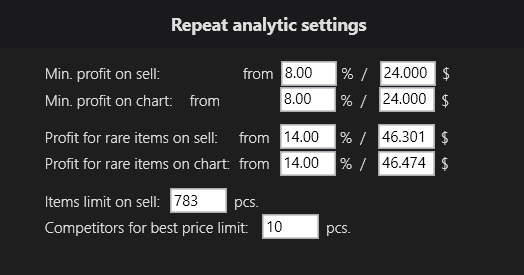
Parameters similar to the basic and advanced analytics settings, by which the item is re-analyzed before purchase.
Note: It is recommended to set weaker values than in the basic and advanced analytics settings so that purchases are not rejected.
Note: It is recommended to set weaker values than in the basic and advanced analytics settings so that purchases are not rejected.
7.10 Orders settings
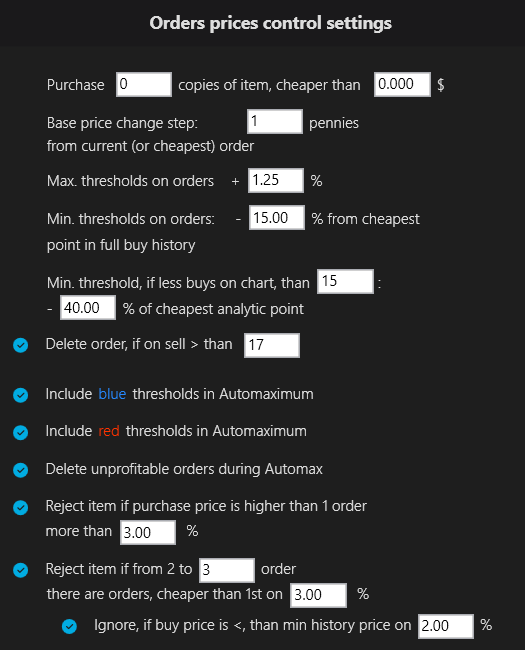
«Purchase … copies…» – the number of orders that must be executed so that no more orders for the item are placed. It is set during the analytics process.
«Base price change step …» – the basic unit of price change on orders, added to the additional step.
«Max. \ min threshold for orders» – the price above or below which the bot will not adjust the price for 1 place in purchase requests (orders).
Formation of the threshold: price of a suitable order + …%. \ min. point on the chart minus %
"Min. threshold, if less buys on chart than …" is a separate parameter for items with the number of purchases on the chart below the specified one (it is recommended to set a large percentage, for example 30-40%)
"Color the max. threshold blue if the 5th order is cheaper than the 1st by … %" - allows you to highlight orders with an adjustable price drawdown to or below a specified position (5 on the screen), and include or not include them in "Automaximum".
«Delete order if on sell > …» - During the price check, the order will be deleted if there are > … offers on sale.
Include blue \ red thresholds in Automaximum» - Automatically includes thresholds of the red color in «Automaximum» during order price adjustment.
«Delete unprofitable orders during Automax» - If during the analysis in the «Automaximum» process the item did not pass the analysis, the order is deleted to optimize the speed of the cycle of checking all orders.
"Reject item if purchase price is higher than 1 order ..." - When making a purchase, the item is analyzed again, and if the bot sees that your purchase price differs from order 1 (you bought at an inflated price, for example - your orders were not checked, etc.), the item will not be accepted and the transaction will be canceled within 5 minutes.
"Reject item if from order 2 to ..." - When making a purchase, the item is analyzed again, and if the bot sees that the item's auto-purchase price may drop significantly, the purchase is rejected.
«Base price change step …» – the basic unit of price change on orders, added to the additional step.
«Max. \ min threshold for orders» – the price above or below which the bot will not adjust the price for 1 place in purchase requests (orders).
Formation of the threshold: price of a suitable order + …%. \ min. point on the chart minus %
"Min. threshold, if less buys on chart than …" is a separate parameter for items with the number of purchases on the chart below the specified one (it is recommended to set a large percentage, for example 30-40%)
"Color the max. threshold blue if the 5th order is cheaper than the 1st by … %" - allows you to highlight orders with an adjustable price drawdown to or below a specified position (5 on the screen), and include or not include them in "Automaximum".
«Delete order if on sell > …» - During the price check, the order will be deleted if there are > … offers on sale.
Include blue \ red thresholds in Automaximum» - Automatically includes thresholds of the red color in «Automaximum» during order price adjustment.
«Delete unprofitable orders during Automax» - If during the analysis in the «Automaximum» process the item did not pass the analysis, the order is deleted to optimize the speed of the cycle of checking all orders.
"Reject item if purchase price is higher than 1 order ..." - When making a purchase, the item is analyzed again, and if the bot sees that your purchase price differs from order 1 (you bought at an inflated price, for example - your orders were not checked, etc.), the item will not be accepted and the transaction will be canceled within 5 minutes.
"Reject item if from order 2 to ..." - When making a purchase, the item is analyzed again, and if the bot sees that the item's auto-purchase price may drop significantly, the purchase is rejected.
7.11 Settings for listing for sale
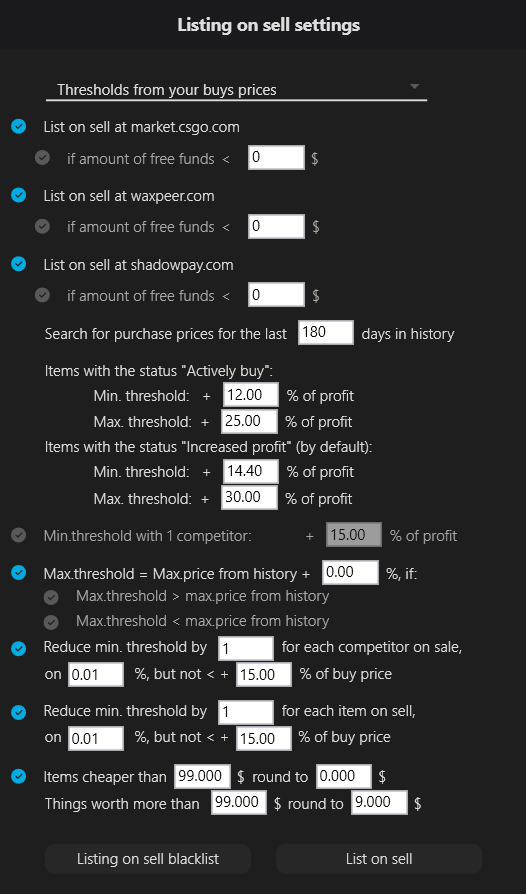
Formation of thresholds:
- «From your buy prices» - the purchase price from your history on market + … %
- «From price charts on the market» - min. threshold is calculated from the cheapest point of the last 10 + … % / from 1st order, if it is higher than such a point, max. - from the offer price in sale + … % / from the most expensive point of the last 10 or less points.
Listing for each platform is connected separately, it is possible to set up an additional condition for the free balance on each platform.
The thresholds are divided into two categories: for items with the statuses in the database "Increased profit" (used by default if the item's status in the database has changed by the time of listing) and "Actively buy" (used only if the item's status is still "Actively buy" by the time of listing for sale).
«Search for purchase prices for the last ...» - the number of days to search for purchase prices in the history of transactions on the platform.
«Min. threshold when listing for sale» – the minimum threshold below which the price will not be adjusted during sale.
«Max. threshold when listing for sale» – the maximum threshold above which the price will not be set during sale.
«Min. threshold with 1 competitor» – the minimum threshold when only 1 competitor is competing for your price with your offer.
"Max. threshold = Max. price from history + ...%" - A parameter that allows you to equate the max threshold of an item to the maximum price in the entire sales history, under one of two conditions: if the max threshold turned out to be more expensive or cheaper than the maximum price from the sales history. Both conditions can be enabled simultaneously. Then all maximum thresholds when listing will be equated to the max prices from the sales history of items.
"Reduce min. thresholds by ..." - an additional reduction in the min. thresholds when putting up for sale, from the basic settings, depending on the total number of items on sale / competitors for the best price on sale. The option helps to quickly and profitably sell an item if by the time of putting it up for sale the competition on sale has changed significantly, avoiding a long sale and not selling too cheaply.
"Items more expensive \ cheaper ... $\₽. round up to ..." - conditions for rounding prices of max. thresholds of items when putting them up for sale. The last digits are rounded to the specified values. So, in the example from the screenshot, with an actual max. threshold of 2679.34 rubles, it will be rounded to 2699.00 rubles.
- «From your buy prices» - the purchase price from your history on market + … %
- «From price charts on the market» - min. threshold is calculated from the cheapest point of the last 10 + … % / from 1st order, if it is higher than such a point, max. - from the offer price in sale + … % / from the most expensive point of the last 10 or less points.
Listing for each platform is connected separately, it is possible to set up an additional condition for the free balance on each platform.
The thresholds are divided into two categories: for items with the statuses in the database "Increased profit" (used by default if the item's status in the database has changed by the time of listing) and "Actively buy" (used only if the item's status is still "Actively buy" by the time of listing for sale).
«Search for purchase prices for the last ...» - the number of days to search for purchase prices in the history of transactions on the platform.
«Min. threshold when listing for sale» – the minimum threshold below which the price will not be adjusted during sale.
«Max. threshold when listing for sale» – the maximum threshold above which the price will not be set during sale.
«Min. threshold with 1 competitor» – the minimum threshold when only 1 competitor is competing for your price with your offer.
"Max. threshold = Max. price from history + ...%" - A parameter that allows you to equate the max threshold of an item to the maximum price in the entire sales history, under one of two conditions: if the max threshold turned out to be more expensive or cheaper than the maximum price from the sales history. Both conditions can be enabled simultaneously. Then all maximum thresholds when listing will be equated to the max prices from the sales history of items.
"Reduce min. thresholds by ..." - an additional reduction in the min. thresholds when putting up for sale, from the basic settings, depending on the total number of items on sale / competitors for the best price on sale. The option helps to quickly and profitably sell an item if by the time of putting it up for sale the competition on sale has changed significantly, avoiding a long sale and not selling too cheaply.
"Items more expensive \ cheaper ... $\₽. round up to ..." - conditions for rounding prices of max. thresholds of items when putting them up for sale. The last digits are rounded to the specified values. So, in the example from the screenshot, with an actual max. threshold of 2679.34 rubles, it will be rounded to 2699.00 rubles.
7.12 Sales settings
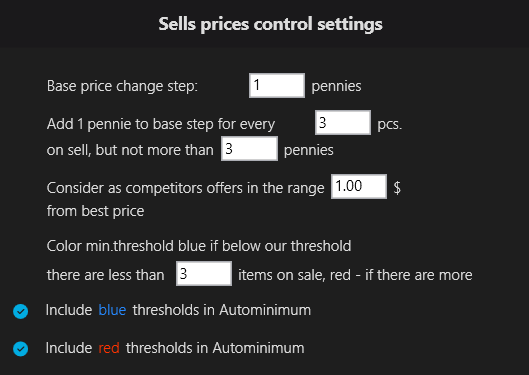
«Base price change step …» – the basic unit of price change on sale, added to the additional step.
«Add 1 pennie to the base step …» – the number of kopecks added to the basic step is based on the number of competitors for the best price on sale.
«Consider as competitors …» - offers on sale, within a specified number of rubles, from our best/ours, will be considered competitors by the bot. The previous parameter is based on their number.
«Color the min. threshold blue if there are up to … items on sale below our threshold, red if there are more» - Allows you to mark items based on the principle of « acceptable \ unacceptable number - competitors on sale below the min. threshold ».
"Include ... thresholds in Autominimum" - Automatically includes thresholds of the selected color, and/or all others in "Autominimum" during price adjustments on sale.
«Add 1 pennie to the base step …» – the number of kopecks added to the basic step is based on the number of competitors for the best price on sale.
«Consider as competitors …» - offers on sale, within a specified number of rubles, from our best/ours, will be considered competitors by the bot. The previous parameter is based on their number.
«Color the min. threshold blue if there are up to … items on sale below our threshold, red if there are more» - Allows you to mark items based on the principle of « acceptable \ unacceptable number - competitors on sale below the min. threshold ».
"Include ... thresholds in Autominimum" - Automatically includes thresholds of the selected color, and/or all others in "Autominimum" during price adjustments on sale.
7.13 Autominimum settings
The settings of this section are divided into several levels.
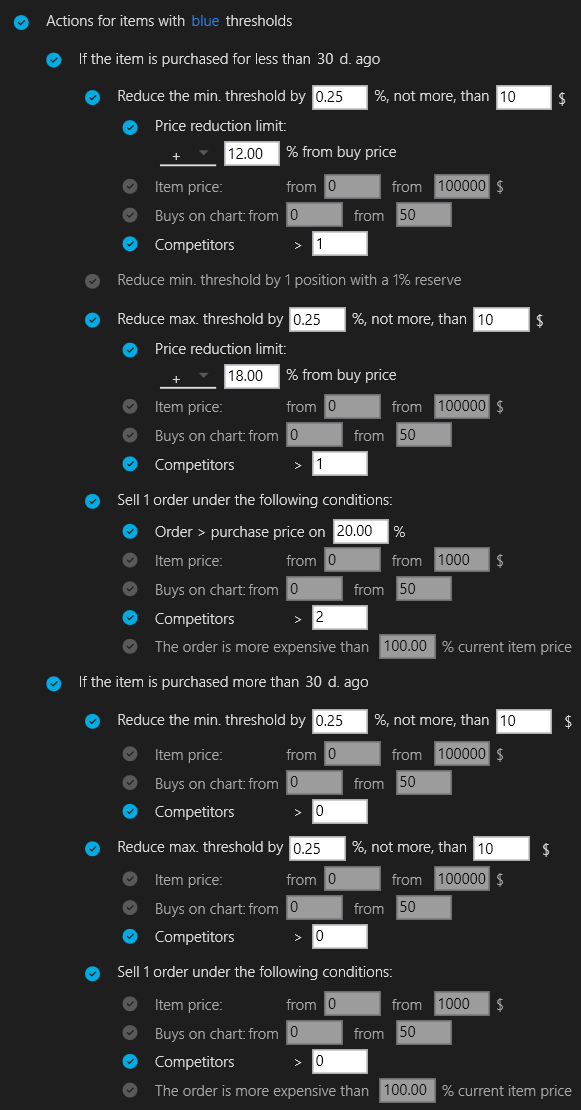
First level - division of all actions to lower thresholds for sale by threshold color. (Screenshot 1)
Blue - items with a small number of competitors below your thresholds for sale (The maximum number of competitors is set in the "Sales Settings" section)
Red - items with a large number of competitors below your thresholds for sale than specified for coloring the threshold in blue.
Second level in each color - division for items purchased less than the number of days specified in the listing settings for sale ago and purchased more than the specified number of days ago ("fresh" and old items).
For items purchased less than ... days ago, the stop-loss parameter is available (limit for price reduction, allows you not to lower the thresholds below the specified level relative to the purchase price), configured as "in plus" and "in minus".
This parameter is not provided for old items, and when lowering the thresholds, they can be lowered "in the minus" relative to the purchase price, since this price cannot be obtained from the purchase history.
All actions are divided into three categories:
1. Reducing the minimum threshold of an item
2. Reducing the maximum threshold of an item
3. Selling an item by 1 order
The remaining parameters are additional conditions for each category of actions in each group of items (purchased recently \ long ago and with a small \ large number of competitors on sale).
First level - division of all actions to lower thresholds for sale by threshold color. (Screenshot 1)
Blue - items with a small number of competitors below your thresholds for sale (The maximum number of competitors is set in the "Sales Settings" section)
Red - items with a large number of competitors below your thresholds for sale than specified for coloring the threshold in blue.
Second level in each color - division for items purchased less than the number of days specified in the listing settings for sale ago and purchased more than the specified number of days ago ("fresh" and old items).
For items purchased less than ... days ago, the stop-loss parameter is available (limit for price reduction, allows you not to lower the thresholds below the specified level relative to the purchase price), configured as "in plus" and "in minus".
This parameter is not provided for old items, and when lowering the thresholds, they can be lowered "in the minus" relative to the purchase price, since this price cannot be obtained from the purchase history.
All actions are divided into three categories:
1. Reducing the minimum threshold of an item
2. Reducing the maximum threshold of an item
3. Selling an item by 1 order
The remaining parameters are additional conditions for each category of actions in each group of items (purchased recently \ long ago and with a small \ large number of competitors on sale).
8. «Charts» tab
8.1 View
8.2 Control panel
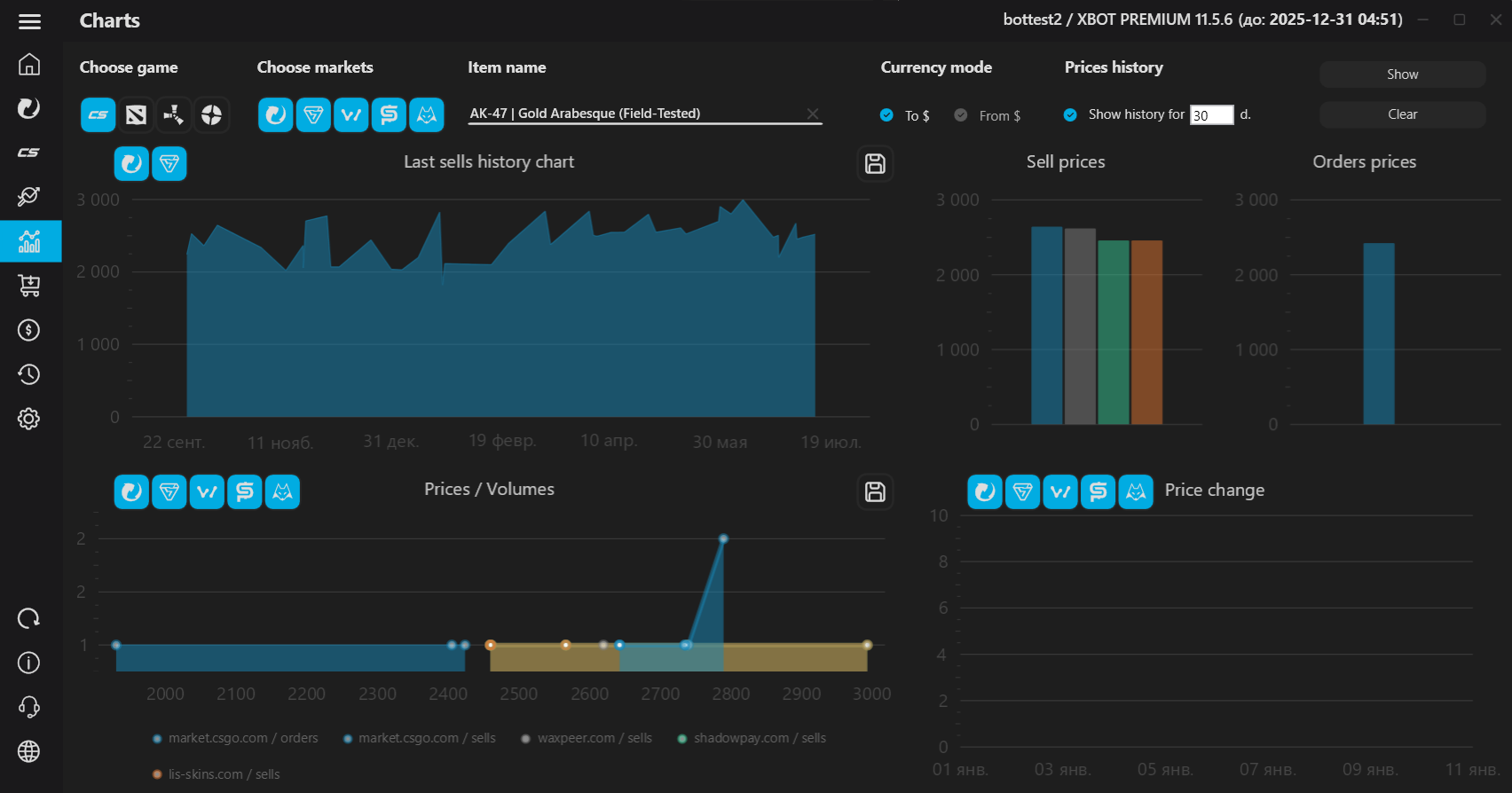
In the upper control panel of the window, you can select the game, the item from which you want to download information, the sites from which you want to get information.You can also choose which currency to convert the downloaded prices into using one of two rules to choose from:
- From $ (to the active currency of your account on market.csgo.com. If your active currency is $, all prices will remain in).
- To $ (with any currency configuration, prices will be converted to $).
The "Show" and "Clear" buttons start loading data and plotting a chart \ clear all charts.
8.3 Chart area
5 charts are available:- Sales histories on platforms (sales histories are only available on market.csgo.com and bitskins.com!)
- Order prices
- Sell prices
- Prices \ Volumes
- Price change history
Each chart can be saved as a picture in 1920x1280 resolution. Saving occurs automatically in the "xbot\charts" folder
9. «Analytics» tab
9.1 View
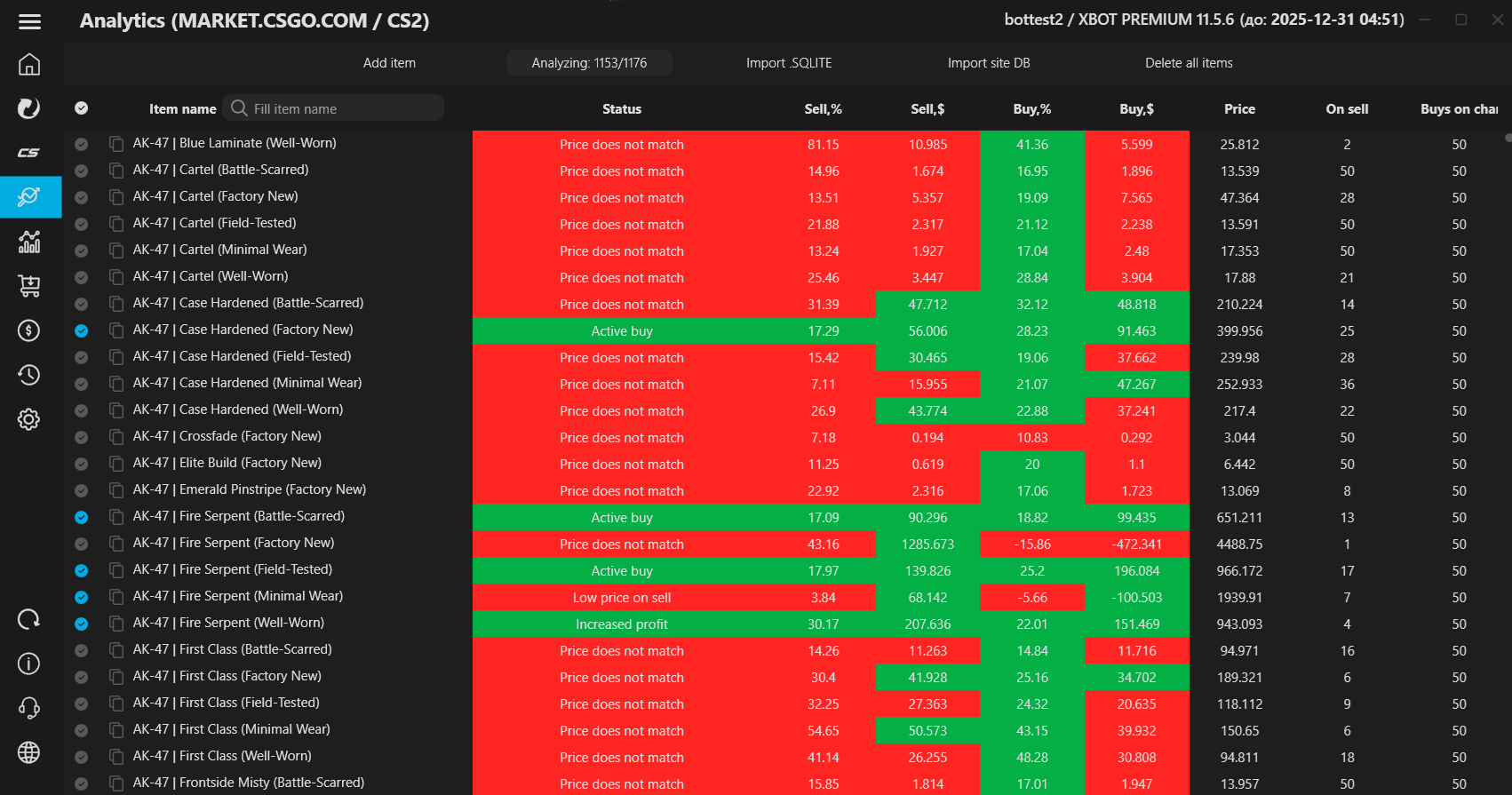
Then, the wearbase is analyzed automatically. You can also delete the wearbase from XBOT in this window.
Left-clicking on the name of a wearbase highlights it in blue. To select a list fragment, hold down the left mouse button and select an area of several names by moving the mouse cursor below or above the beginning of the selection.
To delete selected items, right-click and click "Delete selected items from the database" in the context menu.
9.2 Import.SQLITE databases
To import, you must select the database file that you want to attach to yours, or with which you want to replace your database entirely. If you want to import a database that is currently being used in another bot, turn off the bot from which you are going to import the database before importing.7.3 Site Database Import
Just click the "Site Database Import" button, XBOT will download the current database and start processing it according to your site database import settings.At the end of the import, the database display will be updated in the bot.
Note: If the import is interrupted, it will be canceled and the results will not be saved.
9.3 Analytics
Analytics of the item is carried out in a certain order:1. Filtering by price range
2. Filtering by the maximum permissible number of offers on sale
3. Filtering by categories and the maximum number of orders, (if advanced settings are enabled)
4. Analysis of increased income to the chart and sales depth (if advanced settings are enabled)
5. Filtering by the number of purchases per day, if there is no increased income («Filter by popularity»)
6. Basic analysis of the sales depth and chart for the minimum specified income.
The first X orders of the item are analyzed, the number specified in the «Analyze by the first ... orders» parameter.
In the «Status» column, items will be marked in color depending on the analysis status, indicating a specific situation \ reason for exclusion.
Also, for the convenience of manual sorting of items, the «Items on sale» and "Number of purchases", by sorting which you can improve your trading strategy by sorting things and analyzing them manually, and then adjusting the XBOT settings.
When you click the "Add item" button, a pop-up window will open in which you must enter the name (Must be specified together with the quality, for example "StatTrak™ AWP | Neo-Noir (Factory New)", without quotes).
10. «Orders» tab
10.1 View
10.2 Main function and definitions of the purchase window
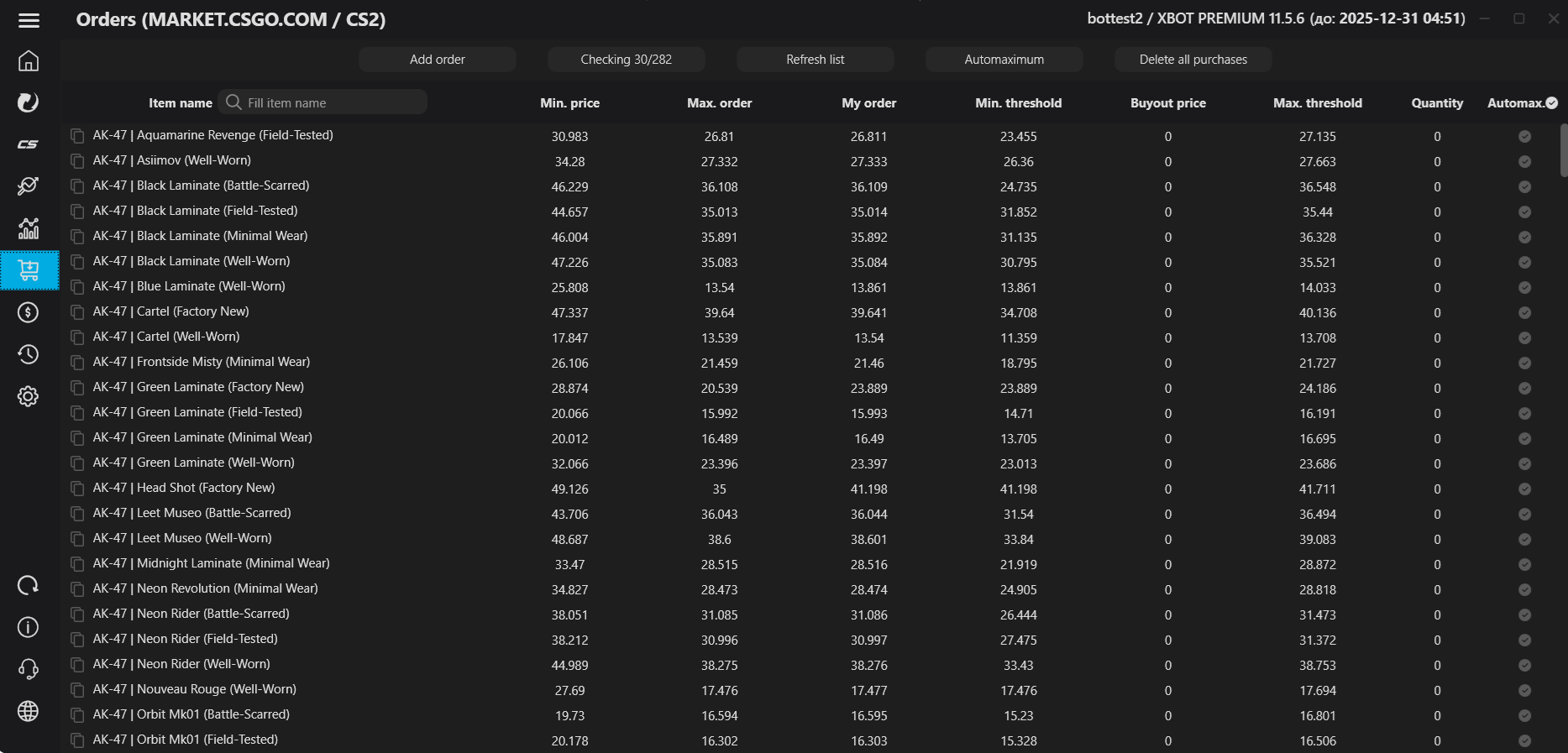
The main function of the window is to control the prices of orders, increasing or rolling them back if necessary. The bot adjusts prices within the values between the min. threshold and the max. threshold.The "Max. threshold" of an item can be colored in one of two colors: red or blue.
"Buyout price" - if in the cycle of adjusting prices for orders, the bot finds an offer for sale below the specified buyout price, the bot will buy it from sale and remove the order.
"Min. threshold» of the item is formed by analytics or manually. The minimum order value that the bot has the right to set for a specific item.
Red means that the bot is no longer fighting for 1 position for this order, since a certain number of orders have appeared above our max. threshold.
Blue means that there are too few competitors above our max. threshold to try to enter the fight for 1 position at their price.
Both blue and red thresholds can be included in the «Automaximum» algorithm.
10.3 Automaximum
«Automaximum» performs the same analytical process for an item as the analytics in the «Item Databases» window, but in automatic mode only items for which there are orders above our max. threshold are included. This means that the bot will significantly save time by rechecking the profitability of only those orders that require analysis of the first order, which we cannot fight for at the moment.10.4 Buttons
"Check items \ Stop checking" - starts \ stops checking prices for orders."Update list" - updates data on the current set of orders in the bot.
"Automaximum" - launches the "Automaximum" function in manual mode, for items with checkboxes set.
«Delete all orders» - Deletes all placed orders from the trading platform and from the bot
10.5 Context menu
When you right-click in any column, a context menu will appear with the options shown in the screenshot.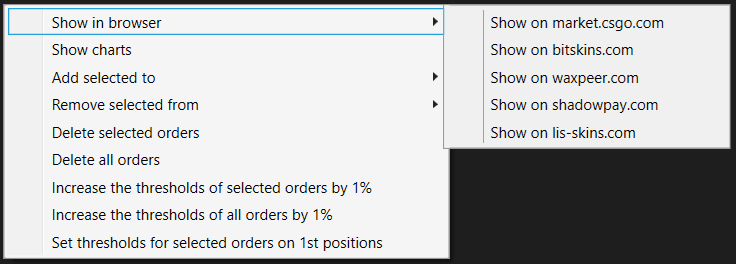
11. «Sells» tab
11.1 View
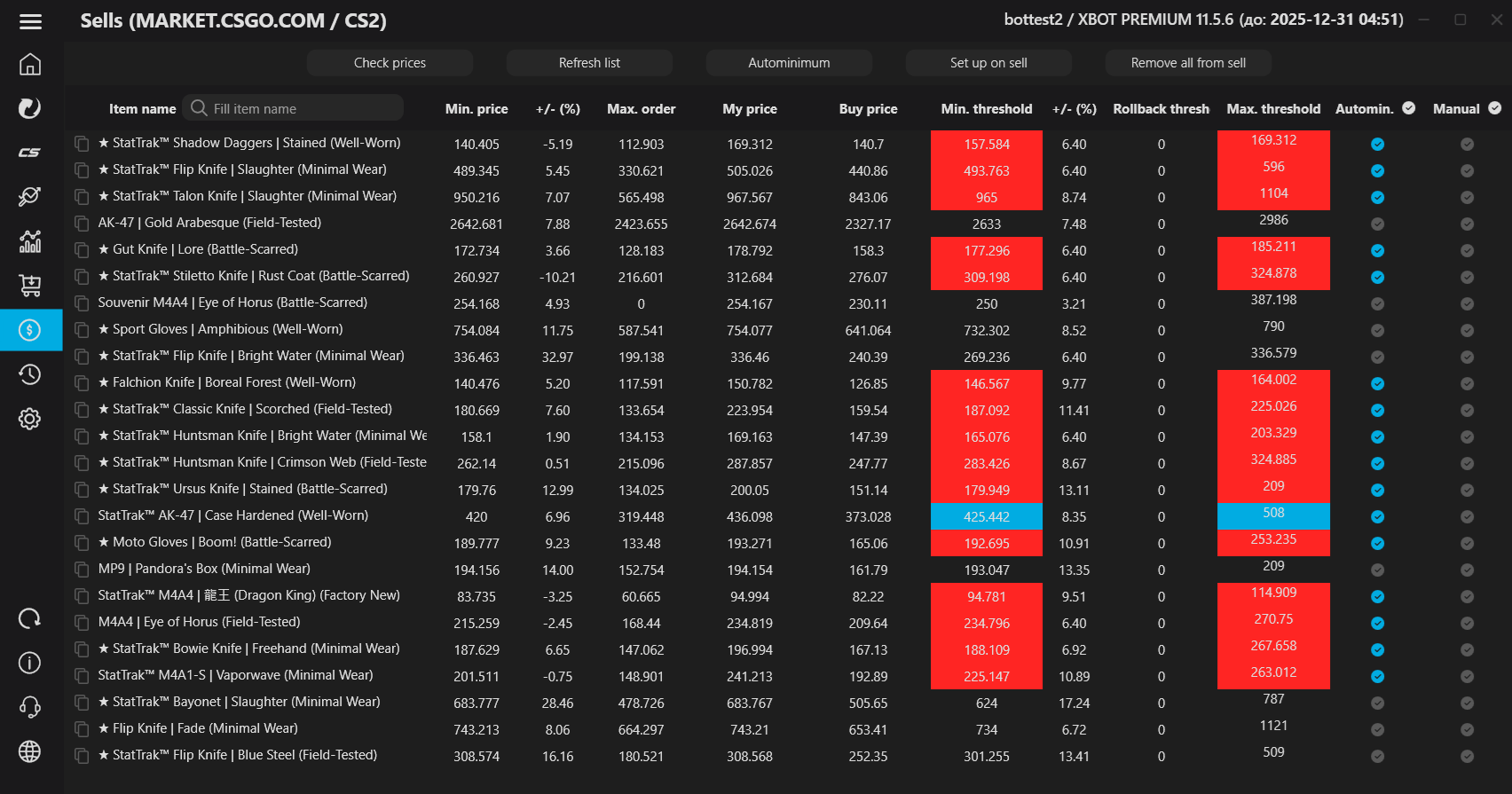
11.2 Main function and definitions of the sales window
To start selling your items, you need to put them up for sale on the TM website, or from the bot using the "Put them up for sale" button, having previously selected one of the threshold formation methods and set the required %. The hint in the form of the "?" sign contains the exact logic of threshold formation for each method. To read the hint, hold down the left mouse button on the "?" sign next to the desired parameter. The main function of the window is to control prices during sales, competing for the position of the cheapest offer. The bot lowers prices below the cheapest value / rolls prices up if necessary within the values of the "Min. threshold" and "Max. threshold" fields. The price adjustment function uses the MassSetPrice API, prices are changed with 1 request for <= 100 items. Item thresholds can have 4 color statuses (since version 1.2): Red - this item has more offers for sale at a price lower than our min. threshold than set in the settings. Blue - this item has less offers for sale at a price lower than our min. threshold than set in the settings (few competitors below the min. threshold). Green - this item is sold only by you (no competitors for sale). Yellow - the item has the same min. and max. thresholds, most likely requires setting more correct thresholds. If the max. threshold of an item = 0, its price will not be adjusted!11.3 Profit quick setup
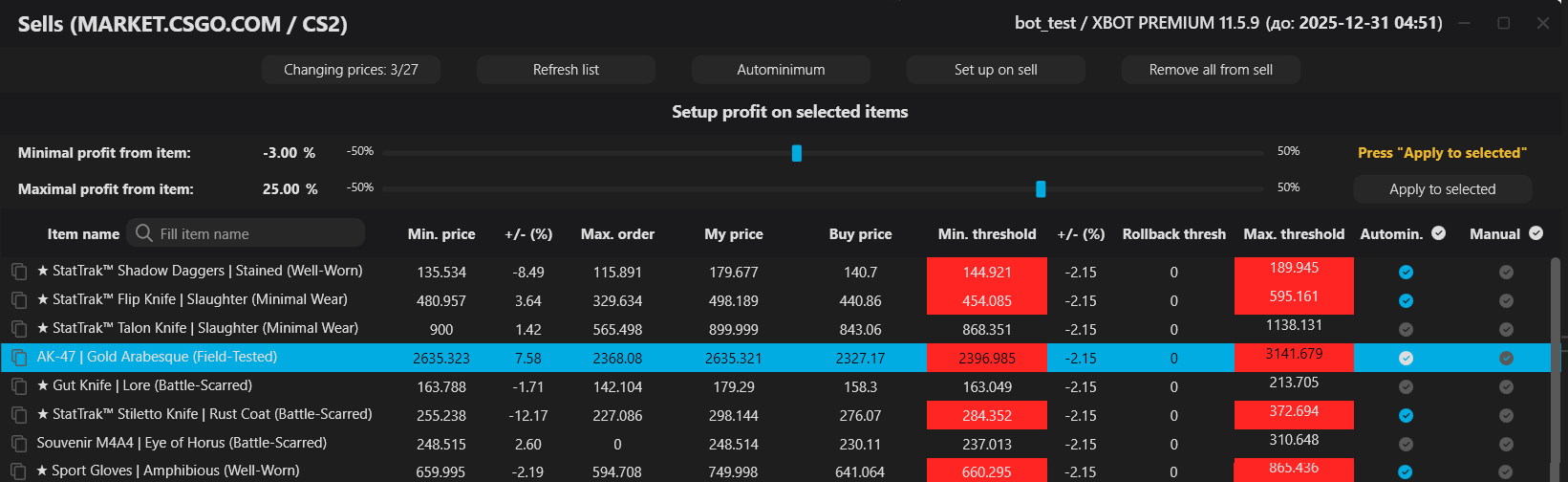
Profit quick setup section helps you flexibly and quickly manage the profit level of any number of items on sale, in 2 steps:
1. Select items. You can use sorting by any column to group items. To select, simply drag the mouse cursor over the items while holding down the right mouse button.
2. Set the minimum and maximum % from the item on the sliders, click "Apply to selected"
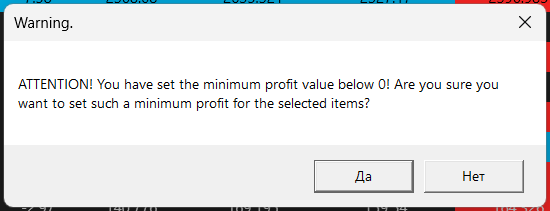
If you set the min. or max. profit value below 0%, you will receive a warning when you try to apply it to the selected items.
1. Select items. You can use sorting by any column to group items. To select, simply drag the mouse cursor over the items while holding down the right mouse button.
2. Set the minimum and maximum % from the item on the sliders, click "Apply to selected"
If you set the min. or max. profit value below 0%, you will receive a warning when you try to apply it to the selected items.
11.4 Autominimum
«Autominimum» lowers the minimum threshold for an item by 1% below the cheapest offer on sale, provided that the item is included in the list for autominimum and the minimum threshold is exceeded (there is a competitor cheaper than the minimum threshold).
11.5 Buttons
"Check items \ Stop checking" - starts \ stops checking prices of items on sale.
Note: Similar to the shopping window function "sticking" to the competitor's price, in this window it rolls our price up, if for example you fought for 1 price position with 1 person, and he left the sale. In this case, your price will roll back to the next cheapest offer, or to your max. threshold, which will allow you to get more income from the item. "Update list" - updates data on the current set of items on sale on the site.
"Autominimum" - launch the "Autominimum" function in manual mode, for items with checkboxes installed.
"Put up for sale" - puts items from the inventory up for sale manually (This function has a timer and can be set to trigger automatically). "Remove all items from sale" - removes all items from sale on the site.
Note: Similar to the shopping window function "sticking" to the competitor's price, in this window it rolls our price up, if for example you fought for 1 price position with 1 person, and he left the sale. In this case, your price will roll back to the next cheapest offer, or to your max. threshold, which will allow you to get more income from the item. "Update list" - updates data on the current set of items on sale on the site.
"Autominimum" - launch the "Autominimum" function in manual mode, for items with checkboxes installed.
"Put up for sale" - puts items from the inventory up for sale manually (This function has a timer and can be set to trigger automatically). "Remove all items from sale" - removes all items from sale on the site.
11.6 Rules for listing items for sale
- From your purchase prices
- From TM prices
11.6.1 From your purchase prices:
From your purchase prices: For the minimum threshold and maximum thresholds, the prices of your purchases from your transaction history on TM are taken as a basis.11.6.2 From TM prices:
From TM prices: For the minimum threshold, the larger of the two values is taken as a basis: 1 order and the minimum point from the last 10 s of the chart; to it is added +…%, specified in your setting for the min. threshold.For the maximum threshold, the larger of the two values is taken as a basis: the cheapest offer on sale and the maximum point from the last 10 s of the chart; to it is added +…%, specified in your setting for the max. threshold.
According to this rule, the bot lists all items from the inventory on TM (from the plus sign) for 1,000,000 rubles, and the first cycle of the price check after listing will reanalyze the "million-dollar items" from the changed ids and set normal thresholds where possible. Items on which the id with crooked data does not change when listed - will automatically change the thresholds and prices to 999,999 rubles (for ease of searching in the bot list). You will have to either sell on SCM (Steam Marketplace), or set the thresholds manually (but in this case, they will be on sale in unique lots without graphs).
Such an algorithm was implemented due to the presence of a bug on TM with changing ids of items when listed for sale, and the impossibility of correctly listing items immediately, without re-analysis after the initial listing!
11.7 Context menu
When you RMB click in any column, a context menu will appear with the options shown in the screenshot.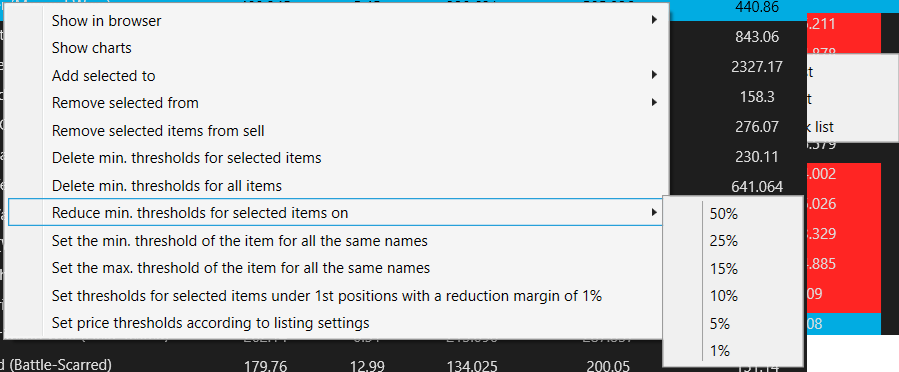
12. «Inventory tab»
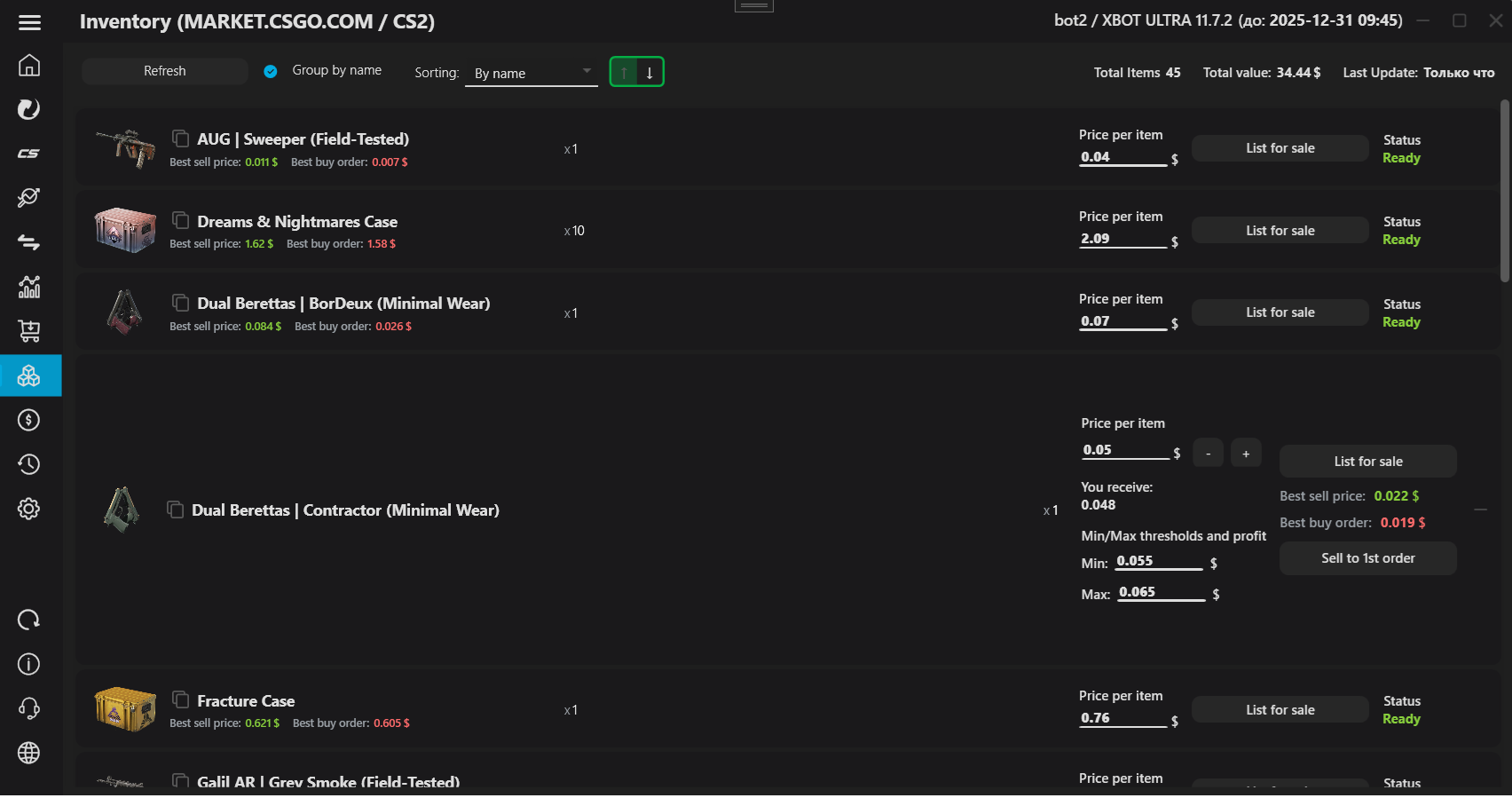
12. Inventory
13. "Statistics" tab
13. Statistics
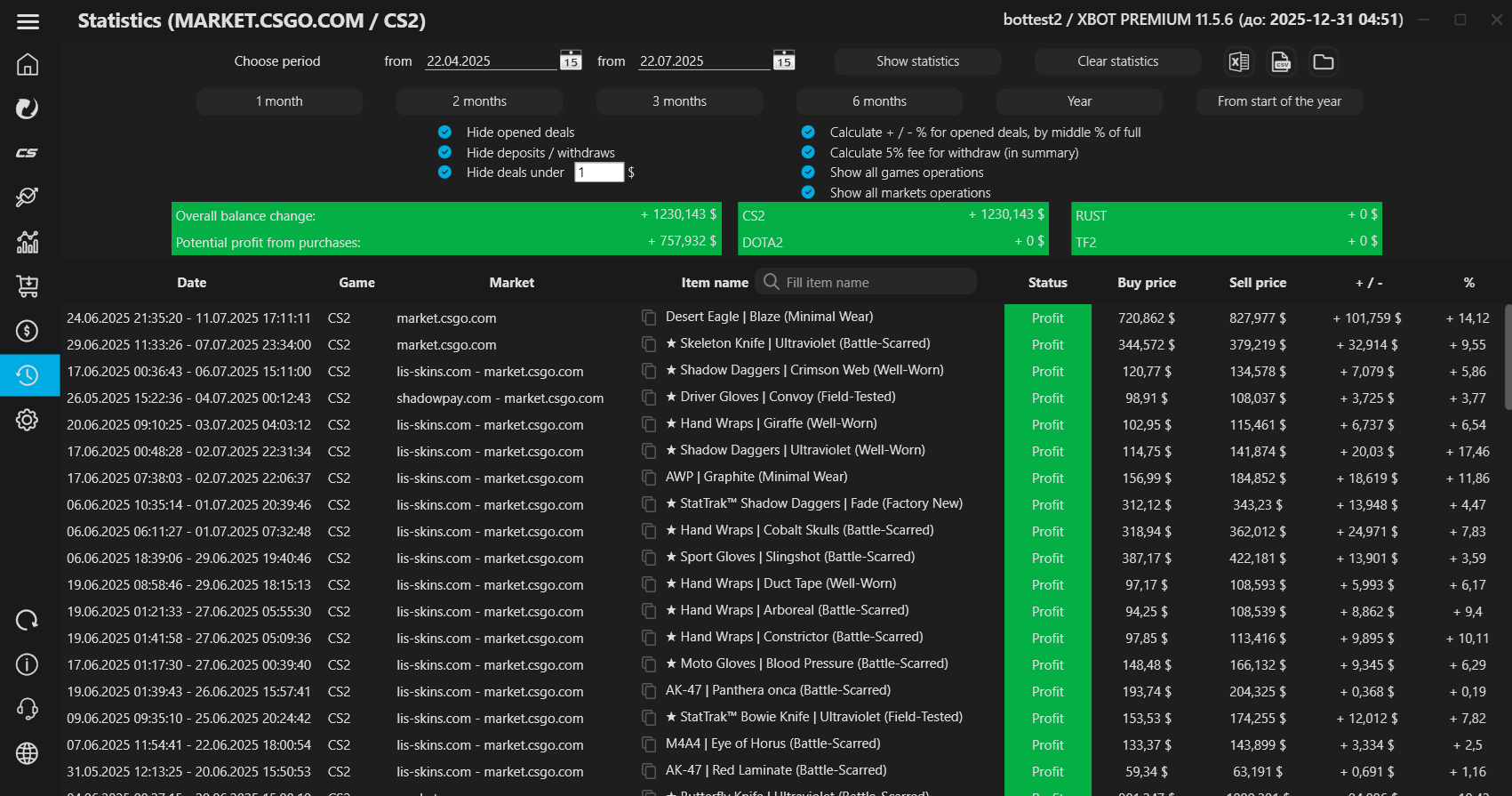
In the top menu, you can select a date manually, as well as use quick buttons to view statistics for a month, 2 months, 6 months, a year, or from the beginning of the current year to the current day.
"Hide open transactions" - hides transactions for purchases of items that have not yet been sold, as well as sales of items that were purchased before the selected date.
"Hide deposits / withdrawals" - excludes the specified transactions from statistics.
"Hide transactions before ..." - excludes the specified transactions from statistics. operations.
"Calculate +/- for open transactions..." - enabling this parameter allows you to calculate the projected profit from items not yet sold based on the average profit from all closed transactions for the selected period.
"Show operations for all games" - on\off accounting of operations from all games on the platform(s).
"Show operations for all platforms" - on\off accounting of operations from all platforms
We recommend enabling all checkboxes for quick calculation of profit.
14. Telegram bot
14. Connecting the Telegram bot
To connect the Telegram bot, you need to write to the BotFather account, create and configure the bot, following its prompts.
After creating the bot, you will have access to the API token, which must be copied entirely into the corresponding field of the bot.
The last step is to generate a PIN for authorization in your Telegram bot, apply the settings and launch the Telegram bot.
Now you can write to your bot and control the bot with available commands. Also, if the Telegram bot is enabled and you are authorized in it, it will send you notifications about the start/end of analytics, transactions and exchanges.
After creating the bot, you will have access to the API token, which must be copied entirely into the corresponding field of the bot.
The last step is to generate a PIN for authorization in your Telegram bot, apply the settings and launch the Telegram bot.
Now you can write to your bot and control the bot with available commands. Also, if the Telegram bot is enabled and you are authorized in it, it will send you notifications about the start/end of analytics, transactions and exchanges.
15. Installing the bot on a remote server
15. Installing the bot on a remote server
Windows-Server-2012-R2-RUS OS is suitable for working with the bot
Let's take as an example the company ZOMRO:
A virtual server is suitable for the bot: Advanced SSD
Specifications:
2x (or more) core processor
4GB RAM
If you plan to load Steam and CS2 on the server, you should take a 60GB SSD This is enough to run CS2 to gain hours in the game and simulate gaming activity. In addition to CS2, it is recommended to add free games to the account and also sometimes launch them from time to time.
It is recommended to add friends and comments in the profile if your account was created recently. After cheating friends and comments, close the wall in your profile to avoid receiving unwanted messages.
After creating a virtual server, it is recommended to immediately change the password for logging in, since remote servers can be attacked by intruders!
How to change the password?
In order for the key combination Ctrl+ALT+DEL to work on a remote computer, you need to press the key combination Ctrl+ALT+END. In the menu that appears, select "Change password"
Be sure to write it down somewhere so you don't forget. Be careful! If you enter the password incorrectly when connecting to a remote desktop, your IP may be banned by the server and you will have to unban it manually through support.
How to connect to the server?
On your local PC, press START and enter Remote Desktop Connection. Launch the interface, enter the server IP, a login and password entry window will appear. Enter them and log in to the server.
A temporary tradeban in Steam due to a change in IP address is very rare. In this case, you can either wait or write to Steam technical support and say that you used a VPN or temporarily logged into your account while on vacation. Usually this works and the account is immediately unbanned. I repeat, this happens very rarely.
CS2 does not start on the server as usual. A window with a graphics driver error appears. This is not scary, it should be so. The game will be considered open, just do not close the error window when you want to close the game - you can close this window and the game will be considered closed.
If you have the opportunity to play CS2 at home on a local PC, this will be better, because the account should look as alive and active as possible.
Let's take as an example the company ZOMRO:
A virtual server is suitable for the bot: Advanced SSD
Specifications:
2x (or more) core processor
4GB RAM
If you plan to load Steam and CS2 on the server, you should take a 60GB SSD This is enough to run CS2 to gain hours in the game and simulate gaming activity. In addition to CS2, it is recommended to add free games to the account and also sometimes launch them from time to time.
It is recommended to add friends and comments in the profile if your account was created recently. After cheating friends and comments, close the wall in your profile to avoid receiving unwanted messages.
After creating a virtual server, it is recommended to immediately change the password for logging in, since remote servers can be attacked by intruders!
How to change the password?
In order for the key combination Ctrl+ALT+DEL to work on a remote computer, you need to press the key combination Ctrl+ALT+END. In the menu that appears, select "Change password"
Be sure to write it down somewhere so you don't forget. Be careful! If you enter the password incorrectly when connecting to a remote desktop, your IP may be banned by the server and you will have to unban it manually through support.
How to connect to the server?
On your local PC, press START and enter Remote Desktop Connection. Launch the interface, enter the server IP, a login and password entry window will appear. Enter them and log in to the server.
A temporary tradeban in Steam due to a change in IP address is very rare. In this case, you can either wait or write to Steam technical support and say that you used a VPN or temporarily logged into your account while on vacation. Usually this works and the account is immediately unbanned. I repeat, this happens very rarely.
CS2 does not start on the server as usual. A window with a graphics driver error appears. This is not scary, it should be so. The game will be considered open, just do not close the error window when you want to close the game - you can close this window and the game will be considered closed.
If you have the opportunity to play CS2 at home on a local PC, this will be better, because the account should look as alive and active as possible.
16. Troubleshooting
16.1 "Check API Key" Error
If you need to recreate the API key, you can do it on this page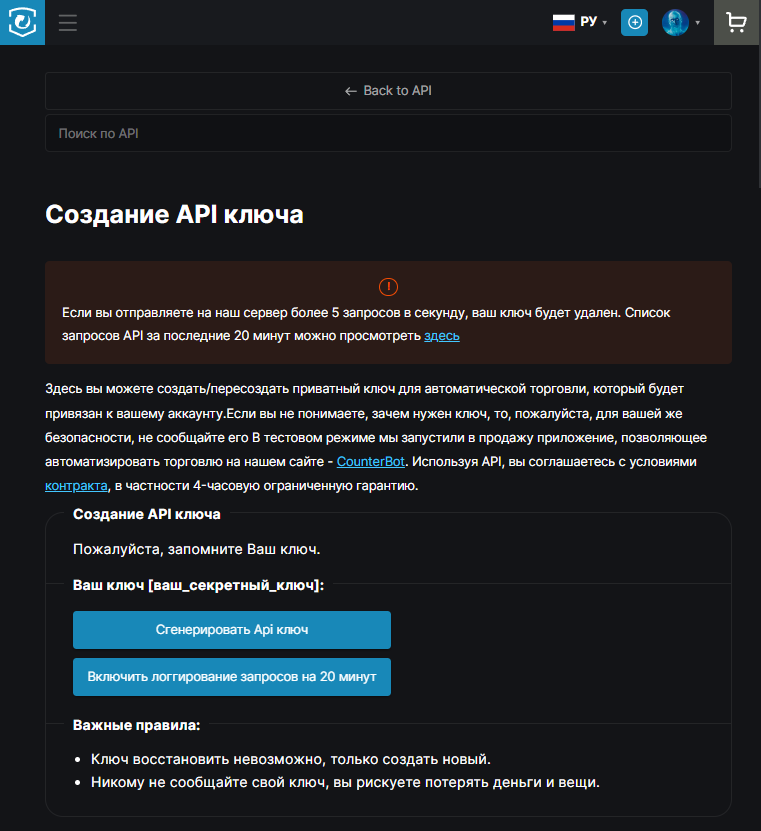
If the «Check API key» text remains in the «Total balance» field in red\black, refresh the list of items in the sales window.
If the key is lost frequently, increase the «Delay between API requests» by 25ms.
16.2 Errors receiving / sending items
Note: Make sure that the application is installed outside the system directory Program Files.Note: Make sure that you have entered valid data for your Steam account (login, pw, steam api key), CAREFULLY CHECK THEM!
Note: Make sure your maFile is correct and all the necessary values are filled in (for example, the "device_id" field). Note: If you cannot log in, despite the correctly entered data, and the decrypted mafile - turn off the bot, try to re-login to SDA (from the folder with the bot) under the necessary account, which will update the maFile in the XBOT folder with the file from SDA, then be sure to turn off SDA and start the bot, try to log in again.
If all the above steps are done, and the data you entered is valid - enable the reception and transmission of things in the corresponding window by clicking the "Run" button in the tab the required market, and wait (usually 3-5 seconds), until the bot logs into Steam. You will see the following messages in the console:
Starting CSGO reception/transfer...
Logging into STEAM...
Generating SteamGuard code...
Logged into STEAM...
This means that reception\transfer of items has been successfully launched. Every 60 seconds, the bot will check
whether there are active trades for reception or transfer on TM and carry them out (receive or send
exchanges and confirm them).
16.3 Error when trying to log in - the required bot is not displayed
If your bot crashed, and you immediately try log in, don't see it in the list - don't be alarmed, just wait 5 minutes, protection against multiple launches is triggered.
17. Technical support
17. Technical support
Technical support on issues related to operation is provided EXCLUSIVELY through the XBOT VKontakte group or XBOT Telegram channel messages.
There are ready-made answers to popular problems, which are constantly being supplemented.
There are ready-made answers to popular problems, which are constantly being supplemented.
18. XBOT balance limit
18. XBOT balance limit
Balance limit The limit is calculated on each platform separately and is structured as follows:
- The amount of available funds on the platform + the amount of items listed for sale must not exceed the balance limit. If it is exceeded, all items will be removed from sale. If the limit is still exceeded after this, the bot will be disabled.
- The amount of purchases on the platform over the past 8 days must not exceed the balance limit. If it is exceeded, analytics will not work, and requests for purchases of items will be deleted.
- The amount of available funds on the platform + the amount of items listed for sale must not exceed the balance limit. If it is exceeded, all items will be removed from sale. If the limit is still exceeded after this, the bot will be disabled.
- The amount of purchases on the platform over the past 8 days must not exceed the balance limit. If it is exceeded, analytics will not work, and requests for purchases of items will be deleted.
19. Setting up trading between platforms
19. Setting up trading between platforms
If you are running the bot for the first time, on the welcome setup screen you only need to select the required platforms and follow the bot prompts to complete the setup. If you have already set up the bot earlier and want to connect additional platforms, follow the instructions below:
19.1 Markets fees
Sales commissions:
market.csgo.com: 5%
bitskins.com: floating grid from 10 to 5% (details in your profile on the platform)
waxpeer.com: 6%
shadowpay.com: 5%
lis-skins.com - sales via bot are not available.
Withdrawal commissions:
market.csgo.com: 5%
bitskins.com: BTC/LTC/ -4%, Binance - 1%, VISA - 5% (Russian cards are not available due to sanctions)
waxpeer.com: 2% (!)
shadowpay.com: 5%
lis-skins.com - sales via bot are not available.
19.2 Prepare
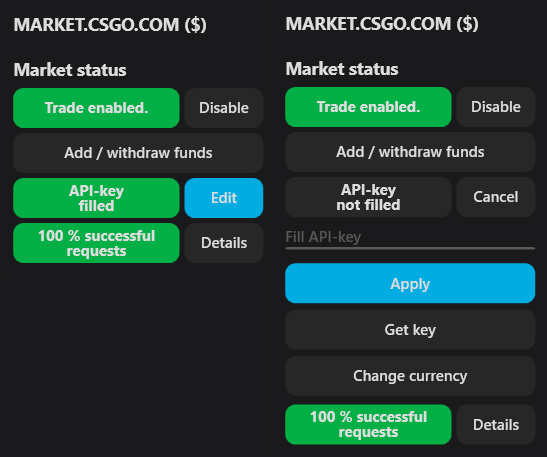
- First of all you need to get the API keys of all the platforms and use them in the bot. To trade on bitskins.com, waxpeer.com, shadowpay.com, lis-skins.com, you also need the API key market.csgo.com as an additional way to receive sales histories and other information, so you also need to specify it on the market.csgo.com platform and use it.
 - Secondly, to get the optimal settings for inter-platform trading, you can reset the settings of all the necessary games, in each platform, on the top button panel of the "Settings tab."
19.3 Setting up purchases and sales
To start trading between platforms, you need to enable analytics and purchases, as well as everything related to listing for sale and selling items. To do this, you need to:
- Enable all trade timers in the timers section (analytics, automax, listing for sale, automin)
- Enable listing for sale on all necessary platforms.
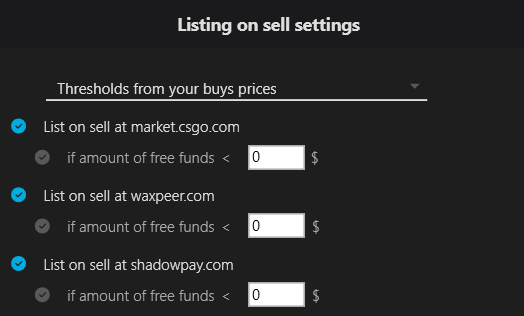 Please note! We will put items purchased on the bitskins.com and lis-skins.com platforms up for sale on p2p platforms (market.csgo.com, waxpeer.com, shadowpay.com). There is no API for selling items on lis-skins.com, and items from bitskins.com are often sold at favorable prices compared to p2p platforms.
- On the "Home" tab, enable analytics, purchases, sales, and receiving/transferring items, in each game you need inside the platform\game tabs
 Items purchased on bitskins.com and lis-skins.com after the tradeban is removed will be taken from the sites to your Steam inventory, and after the tradeban is removed again they will be put up for sale.
19.4 Recommendations for self-setup
The main parameters that affect the dynamics of purchases:
- Minimum profits from an item (Basic analytics settings)
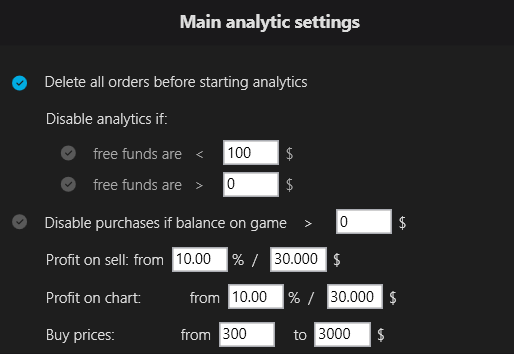 - Increased profits from rarer items (Advanced analytics settings)
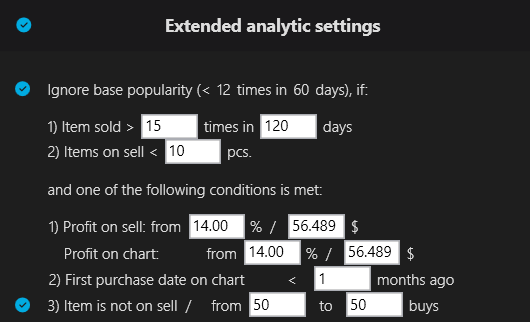 Optimal values are already set in the bot by default!
When the % values are reduced, the bot will find fewer profitable items, but they will be bought more often.
When the % values are increased, the bot will set higher buyout prices for items, but purchases at such prices will be made less often.
19.1 Markets fees
Sales commissions:
market.csgo.com: 5%
bitskins.com: floating grid from 10 to 5% (details in your profile on the platform)
waxpeer.com: 6%
shadowpay.com: 5%
lis-skins.com - sales via bot are not available.
Withdrawal commissions:
market.csgo.com: 5%
bitskins.com: BTC/LTC/ -4%, Binance - 1%, VISA - 5% (Russian cards are not available due to sanctions)
waxpeer.com: 2% (!)
shadowpay.com: 5%
lis-skins.com - sales via bot are not available.
19.2 Prepare
- First of all you need to get the API keys of all the platforms and use them in the bot. To trade on bitskins.com, waxpeer.com, shadowpay.com, lis-skins.com, you also need the API key market.csgo.com as an additional way to receive sales histories and other information, so you also need to specify it on the market.csgo.com platform and use it.
19.3 Setting up purchases and sales
To start trading between platforms, you need to enable analytics and purchases, as well as everything related to listing for sale and selling items. To do this, you need to:
- Enable all trade timers in the timers section (analytics, automax, listing for sale, automin)
- On the "Home" tab, enable analytics, purchases, sales, and receiving/transferring items, in each game you need inside the platform\game tabs
19.4 Recommendations for self-setup
The main parameters that affect the dynamics of purchases:
- Minimum profits from an item (Basic analytics settings)
When the % values are reduced, the bot will find fewer profitable items, but they will be bought more often.
When the % values are increased, the bot will set higher buyout prices for items, but purchases at such prices will be made less often.